Connect Slack to Centralize
Last updated: October 19, 2026
Connect Slack to Centralize so you can receive timely alerts, work on tasks, and capture customer communications directly from Slack, keeping relationship context current without leaving your workspace.
Contents
Why connect Slack?
Before you start
Connect Slack
Next steps
Need help?
Why connect Slack?
Slack is where a lot of account activity and customer communication already happens. Connecting Slack keeps that activity visible in Centralize and puts timely updates directly in your team's hands. When you connect Slack, you can:
Get Slack DMs when you're assigned a task, mentioned, or when contacts you own or follow change.
Get alerts in Slack for job changes, call prep, warm connections, and recommended next actions.
Post account activity, like new tasks and owner changes, to an internal account Slack channel (set up by the account owner or an admin), and update tasks right from the channel.
Send Centra a DM in Slack to create or update tasks.
Enterprise plan: Connect external Slack channels (like shared customer channels) so Centralize can capture customer comms and keep relationship context up to date.
Before you start
Make sure you have permission to authorize apps in your Slack workspace.
Connect Slack
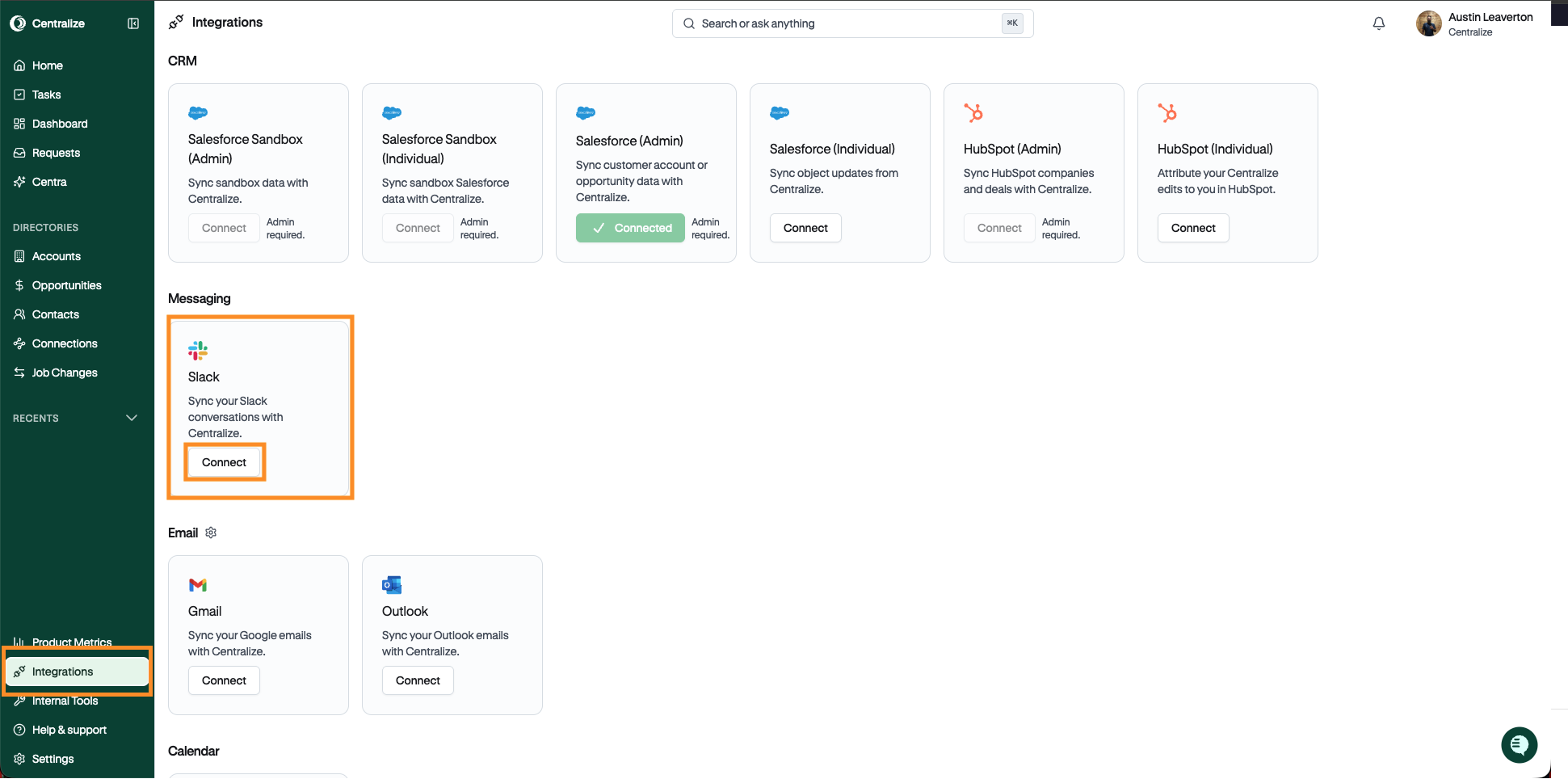
Click Integrations in the left sidebar (or go to app.usecentralize.com/connect-integrations).
Find the Slack integration card and click Connect.
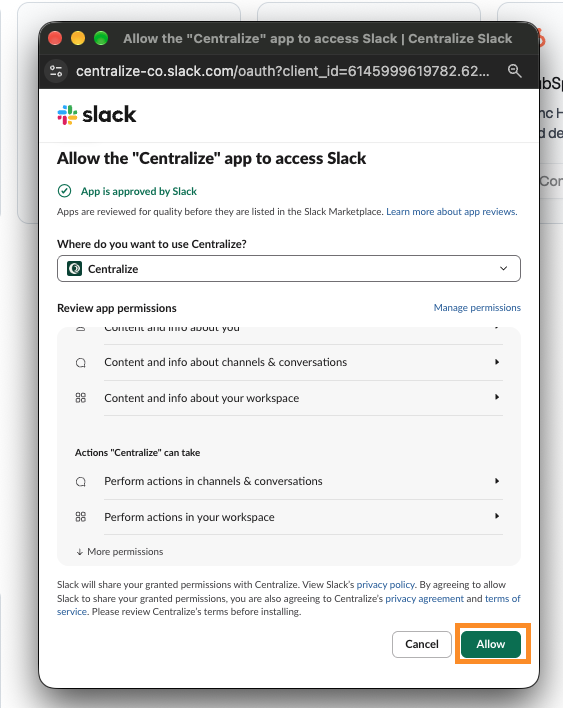
In the authorization pop-up, click Allow to finish connecting Slack.
📹 Walkthrough: How to Connect Slack Integration in Centralize
Next steps
Admins and account owners: Choose where account notifications post. See 📄 Set Up Account Slack Channels.
Everyone: Learn what you can do with tasks from Slack, and what syncs which way. See 📄 Work on Tasks From Slack: What Syncs and Which Way.
Choose which notifications reach you by Slack DM in 📄 Notification Settings.
Need help?
If you're having trouble connecting Slack or don't see alerts coming through, contact support@usecentralize.com for assistance.