Mentions & Notifications: Collaborating with Your Team
Last updated: October 16, 2026
Mention teammates directly in notes and tasks to loop them into the work without leaving Centralize. Mentioned teammates are notified right away through the notification bell, email, and Slack, so nothing gets missed.
Contents
Mention a teammate in a note
Mention a teammate in a task
Review your mentions and notifications
Mention someone who isn't in Centralize yet
Mention a teammate in a note
You can leave a note on an account, a contact, or an opportunity, and mention teammates in it.
Open where you want the note:
Account or opportunity: open it and go to the Notes tab. You can also click More Actions → Add Note on the Stakeholder Map.
Contact: click the contact’s card (for example, on the Stakeholder Map), then go to the Notes tab in the panel.
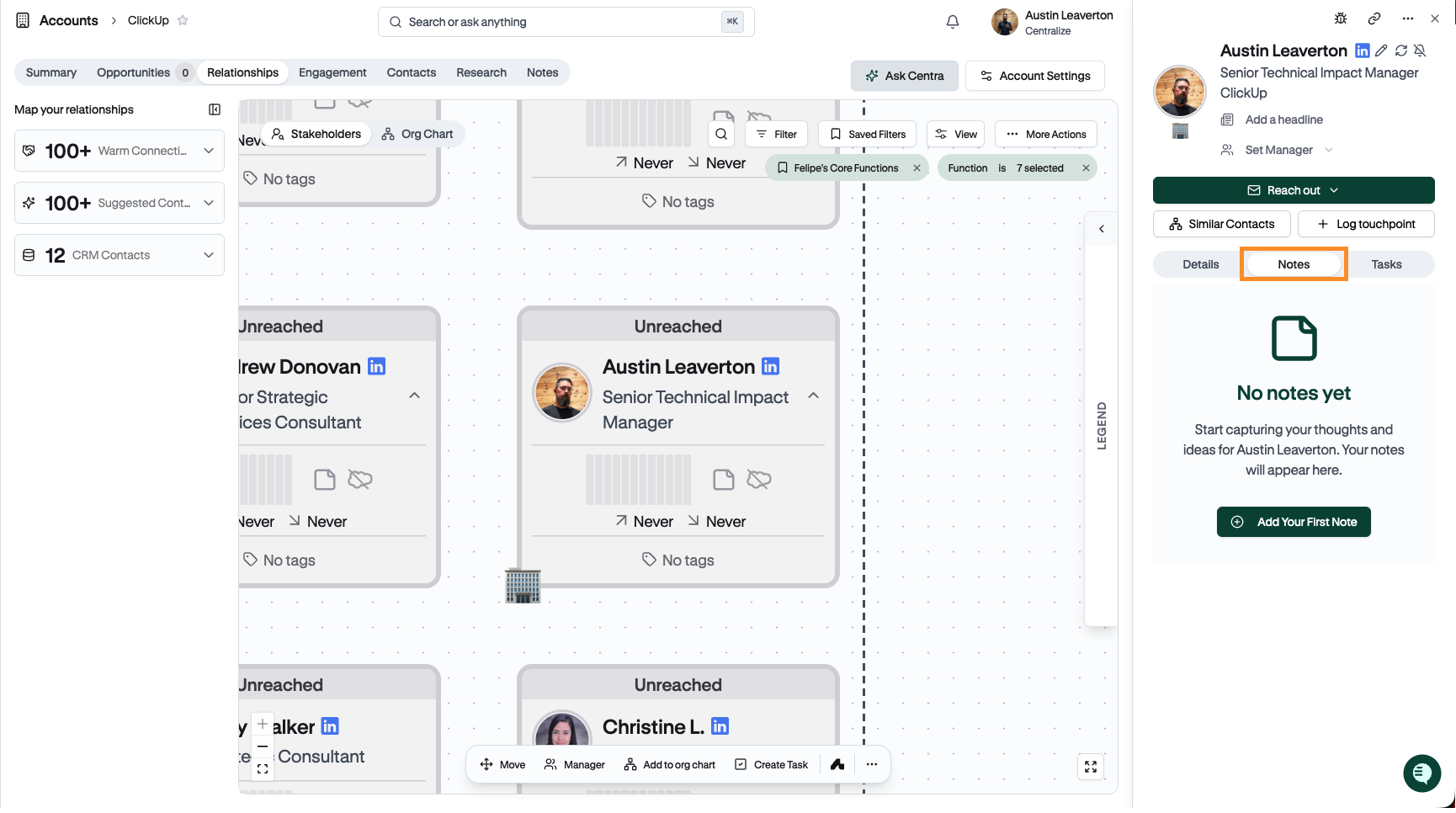
Click New Note. If there aren’t any notes yet, the button says Add Your First Note.
Type @ followed by your teammate’s name.
Select their name from the dropdown to add the mention.
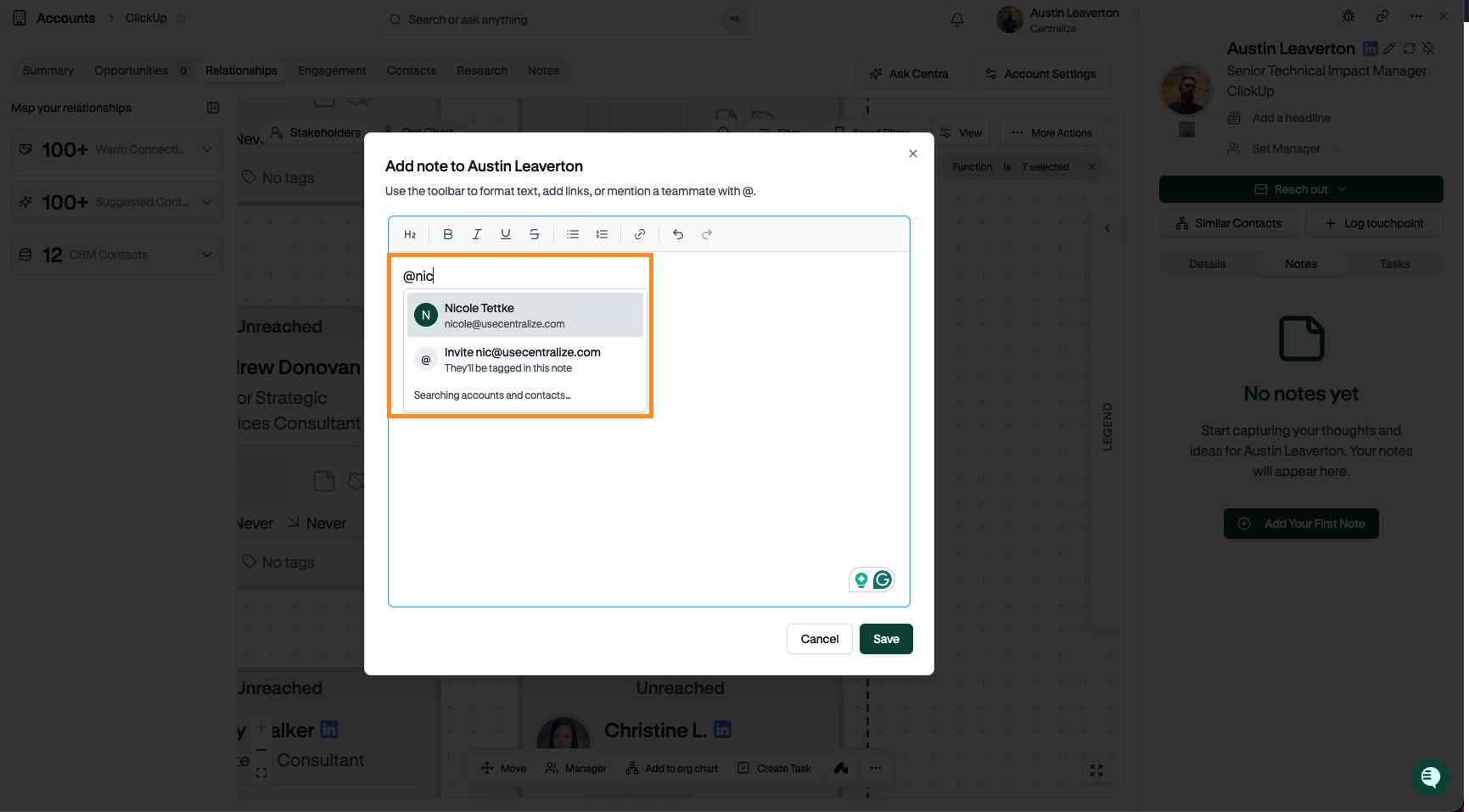
Save the note.
Tip: Mentioning a teammate notifies them. Linking an account or contact in a note just creates a link to that record — it doesn't notify anyone.
Mention a teammate in a task
Mentions also work in a task's description and comments. Type @, pick a teammate, and save. They're notified and can click straight back to the task. See 📄 Tasks: Assign and Track Work With Your Account Team.
Review your mentions and notifications
Whenever you're mentioned, Centralize notifies you in three places so you don't have to go looking for it.
Click the notification bell icon in the top navigation to see your latest mentions.
Check your email inbox — Centralize sends an email notification for each mention.
Check Slack — Centralize also sends you a direct message when you're mentioned. If your admin has set up a Slack channel for the account, note mentions may post there too.
Click the link in any notification (bell, email, or Slack message) to jump straight to the note or task where you were mentioned.
To choose which notifications reach you by email or Slack, see 📄 Notification Settings.
Mention someone who isn't in Centralize yet
You can invite a colleague by typing their work email in the @ menu, if your workspace allows it. By default, invitations from mentions and invitations to email addresses outside your company are turned off — ask your admin if you don't see the option. When invited, your colleague gets an email to join and signs in (through SSO if your company uses it). They land on the note or task they were invited from, as long as they have access to it.
For the full flow and admin settings, see 📄 Invite a Teammate From a Note or Task.
Need help?
If you're having trouble setting up or receiving notifications, contact support@usecentralize.com.