Notification Settings
Last updated: October 30, 2026
Choose how Centralize notifies you about tasks, mentions, the contacts you own or follow, upcoming calls, job changes, warm connections, intro requests, contact searches, and more. Most notifications show up in your in-app inbox. You decide which ones also reach you by email or Slack DM, so you can stay on top of your accounts without logging in to check.
Contents
Access Notification Settings
How Notifications Are Delivered
Choose Your Notifications
Notification Types
Your Notification Inbox
Slack Channel Notifications
Need help?
Access Notification Settings
You can get there three ways:
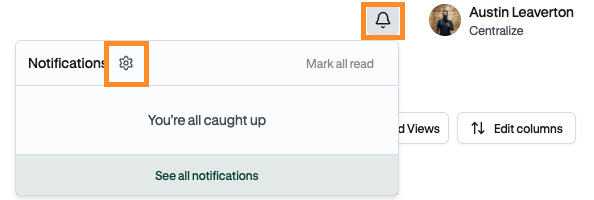
From the notification bell
Click the bell icon in the top navigation bar.
Click the gear icon next to the Notifications title.
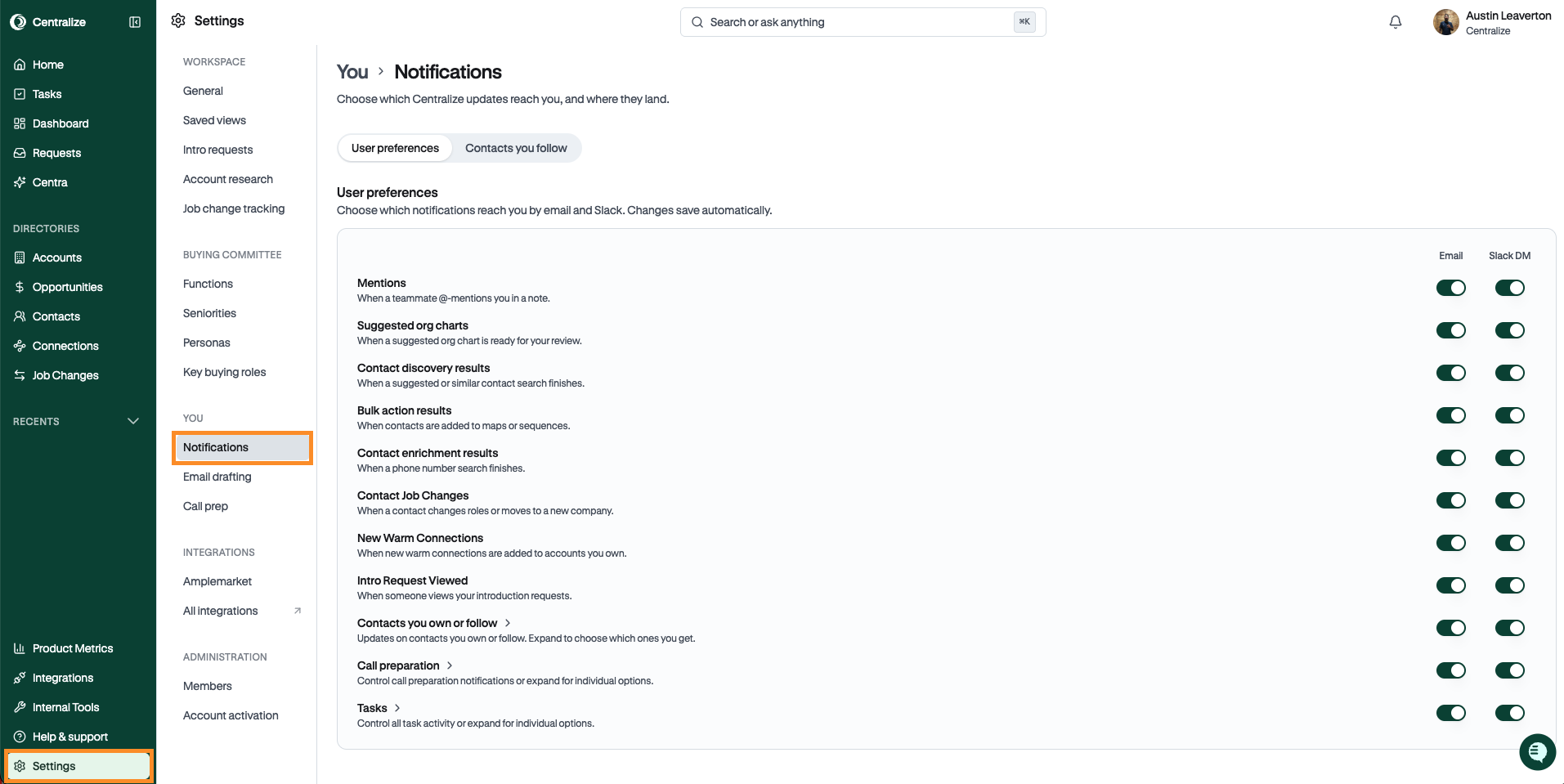
From Settings
Click Settings at the bottom of the left sidebar.
In the settings menu, under You, select Notifications.
From any notification — every notification explains why you're getting it and includes a link to manage your notification settings.
How Notifications Are Delivered
Centralize can deliver each notification in three places:
In-app inbox: Most notifications appear in your inbox under the bell icon (Per-meeting briefs are the exception). The inbox is always on and can't be turned off.
Email: Notifications go to the email address on your Centralize account.
Slack DM: Notifications come to you as a direct message from the Centralize Slack app. Centralize finds your Slack account by matching your Centralize email address to your company's connected Slack workspace.
Email and Slack DM are on by default for every notification type except Per-meeting briefs, which are off by default (see Call preparation below). You can turn either one on or off for any type at any time.
Your settings only apply to you. However, if an admin turns off Slack for your whole organization, you won't get Slack DMs no matter what your own settings are. If an account has its own Slack channel, some notifications may post to that channel instead of your DMs (see Slack Channel Notifications below).
Notification emails end with "No longer want these emails? Manage notification settings," which takes you straight to this page.
Choose Your Notifications
The Notifications page shows a grid with each notification type on its own row and a column for Email and Slack DM. Related types are grouped together. Expand a group to see its rows.
Find the notification type you want to change.
Turn Email and/or Slack DM on or off for that row.
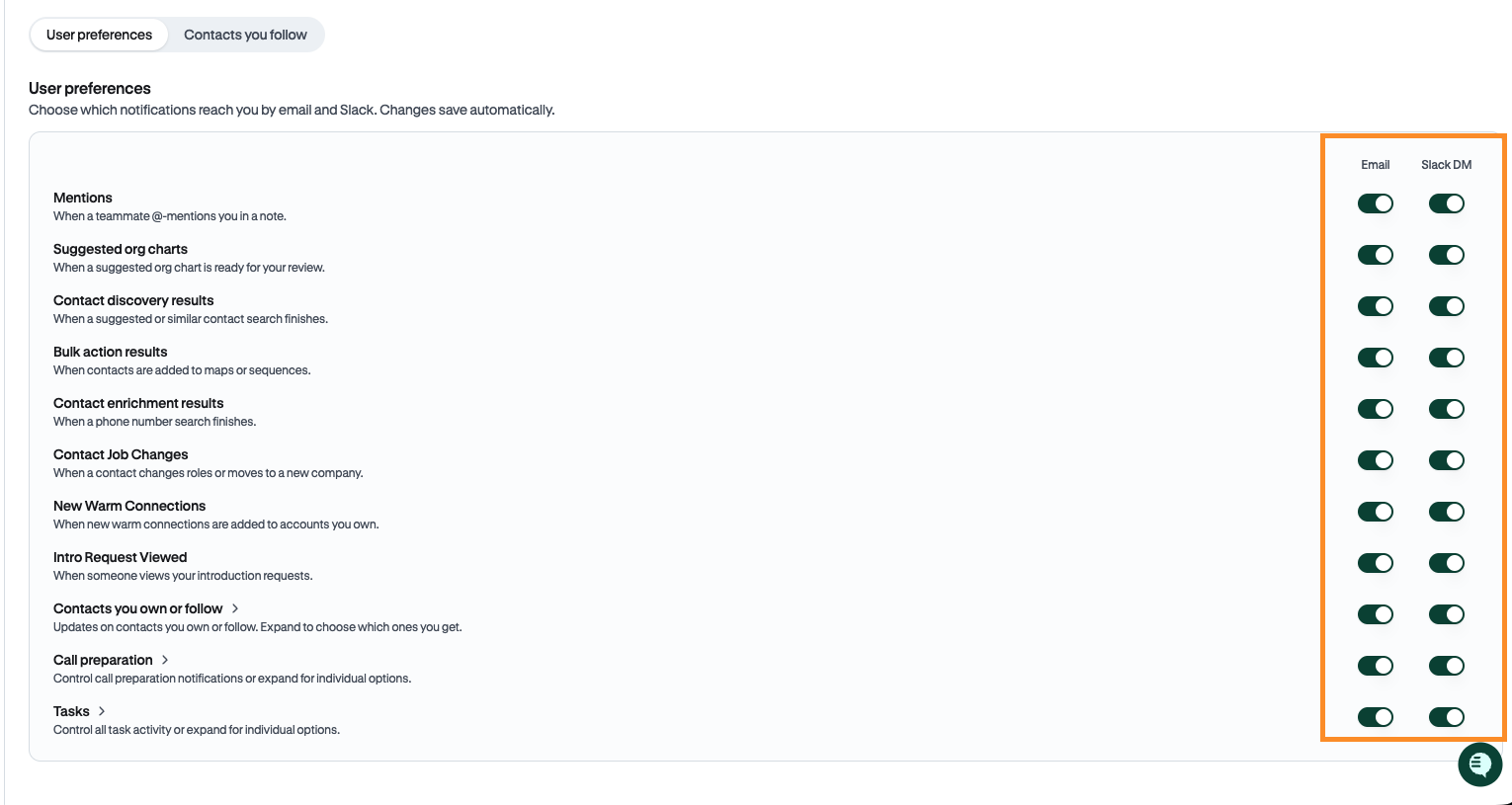
To change every row in a group at once, use the Email or Slack DM switch on the group header.
Tip: If you only want to see a notification type in Centralize, turn off both Email and Slack DM for it. It will still appear in your in-app inbox (except Per-meeting briefs).
Note: Notification types that only appear in-app, such as product announcements, aren't listed here because they have nothing to configure.
Notification Types
Tasks
This group covers activity on tasks you're part of:
Assignments: A task is assigned to you.
Updates: A task you're on changes (for example, its status, priority, or due date).
Comments: Someone comments on a task you created, are assigned to, or have commented on.
Completions and Cancellations: A task you're on is completed or canceled.
@mentions in tasks are covered by the Mentions row. For more on tasks, see 📄 Tasks: Assign and Track Work With Your Account Team.
Contacts you own or follow
Stay up to date on the relationships you're responsible for or following:
Owner assignment notices: You're made the owner of a contact.
New notes and New tasks: A teammate adds a note or task on a contact you own. If you're already notified as the assignee or a mentioned teammate, you won't get a second notification.
New touchpoints, Sentiment changes, Buying role changes, and Main priority changes on contacts you own or follow.
Contact changes show in your inbox right away. By email and Slack DM, they're bundled into one daily digest grouped by account and contact, so owning lots of contacts won't flood you. Changes you make yourself don't notify you. You can also see and change the contacts you follow from this page. For more, see 📄 Contact Owners, Following Contacts, and Follow-Up Tasks.
Mentions
Find out when a teammate @mentions you in a note or task.
Call preparation
This group has two rows:
Per-meeting briefs: Get contact-level summaries, key quotes, and suggestions to move deals forward before each upcoming call. These are off by default, so turn on Email and/or Slack DM for this row to start getting them. Per-meeting briefs don't appear in your in-app inbox; you can always find the brief on the meeting's account.
Morning digest: Get one summary of all your meetings each morning.
Tip: Used to get a brief before each call and it stopped? Go to Settings → You → Notifications and turn Per-meeting briefs back on.
Contact Job Changes
Find out when contacts change roles or move to a new company. Accounts don't need to be activated in Centralize for job changes to appear.
New Warm Connections
Get a summary whenever net new warm connections are added to accounts you own, so you never miss a potential break-in path as your team's network grows. You only get these for accounts you own. For more, see 📄 Warm Connections.
Intro Request Viewed
Find out when someone views an introduction request you sent, so you can see where each ask stands.
Suggested org charts
Find out when a suggested org chart you generated is ready to review, so you don't have to wait on the page.
Contact discovery results
Find out when a suggested or similar contact search finishes. This row covers every search update: search complete, first contact found, search failed, and similar contact search complete.
Bulk action results
Find out when a bulk action finishes, such as adding contacts to maps or sequences, or sequencing contacts from the Chrome extension.
Contact enrichment results
Find out when a phone number search finishes.
Note: Centralize doesn't send notifications about activity older than 7 days that comes in during an import, such as a historical email sync. That way you aren't alerted about old activity.
Your Notification Inbox
Click the bell icon in the top navigation bar to open your inbox. The bell shows how many notifications are unread. When a new one arrives while you're in Centralize, a chime plays and the dot pulses.
From the bell popup you can:
Open a notification to go straight to the related item, such as a task, note, meeting brief, or contact
Mark one notification as read
Mark all read
Click See all notifications to open the full page. There you can filter, select several notifications and mark them as read or unread, and change the sort order.
Note: Notifications can't be deleted or cleared. To keep your inbox tidy, mark notifications as read. To stop getting a type of notification by email or Slack, turn it off in your notification settings.
Slack Channel Notifications
Account activity can post to Slack so the whole account team sees it. Slack must be connected. Job changes post to a general channel. Tasks, owner changes, and mentions post only to a channel set for that specific account.
Admins and Owners set the organization defaults in Settings → Slack (under Integrations): the general channel for job changes, and which topics are on by default.
An account's owner (or an Admin/Owner) can choose that account's channel. Open the account, click Account Settings (top right), and go to Account alerts.
Until a channel is set up for an account, its notifications only go to individual people. For the full walkthrough, see 📄 Set Up Account Slack Channels.
Important: Centralize warns you before you save a channel that people outside your company can see. Account notifications can include relationship and deal details, so double-check before using shared channels.
Need help?
If you're having trouble setting up or receiving notifications, contact support@usecentralize.com.