Warm Connections
Last updated: October 30, 2026
Warm Connections surface your team's first-degree LinkedIn connections inside Centralize, scored by relationship strength, so you can find warm intro paths into your accounts. Instead of cold outreach, leverage relationships your colleagues have already built to get a warm introduction or have a teammate reach out on your behalf.
Contents
Why use Warm Connections?
Before you start
Access Warm Connections
Invite teammates to grow your network
Filter and track intro request status
Understand relationship strength
Choose how long alumni count as warm connections
Request an introduction or outreach
Track requests
Extend your network with partners
Slack notifications for Warm Connections
Need help?
Why use Warm Connections?
When you use Warm Connections, you can:
Find break-in points into accounts where no one on your team has direct contact yet.
Prioritize your network based on relationship strength scoring, so you focus on the warmest paths first.
Move from insight to action with built-in introduction and outreach requests, including drafted messages.
Before you start
Make sure your LinkedIn connections are synced. If you haven't done that yet, start with Install the Chrome extension and Sync your LinkedIn Connections.
Warm Connections appear once your network has finished syncing and Centralize has matched it against your accounts.
Access Warm Connections
There are three primary ways to access Warm Connections in Centralize.
Account-level view On any account page, the Map your relationships panel displays all Warm Connections into that specific account — the target contact (the person at the account), the connecting contact on your team, and the relationship strength between them. Use this view when you're working a specific account and want to identify which teammates have existing relationships you can leverage.
Connections tab The Connections tab shows every LinkedIn connection your teammates have synced, including people at companies that aren't in your workspace yet. You can filter, sort, and search to find the strongest paths into your book of business, or spot relationships at companies you haven't added yet. Use this view when you want to look across your team's whole network at once and prioritize where to request introductions.
Tip: To see everyone a specific teammate is connected to, click Filter, choose Connecting Contact, and select that teammate.
Quick check on a contact When you open a contact, look under their profile photo for a quick read on whether you have a warm path in:
🔥 Direct connection — you're connected to this person on LinkedIn.
🏢 Warm connection — someone else on your team is connected to them, but you aren't. (On the Org Chart, this same icon is labeled Company connection.)
Hover over the icon to see who the connection runs through. If there's no icon, no one in your network is connected to this contact yet. For full details and relationship strength, scroll down to Warm Connection Pathways in the same panel.
Invite teammates to grow your network
Your Warm Connections pool is only as strong as the LinkedIn networks synced into it — inviting more teammates means more potential break-in paths for everyone on your team.
If your Connections tab doesn't show any Warm Connections yet, look for the invite teammates prompt right in that empty state.
You can also start a teammate invite from the left navigation bar.
Or go to Settings → Users → Manage → Invite User.
Once your teammate joins, have them sync their LinkedIn connections (via the Chrome extension) so their network is added to your team's Warm Connections pool.
Tip: This is different from inviting external partners (see Extend your network with partners below) — teammate invites bring in people at your own company, while partner invites bring in external advisers, investors, and customers. If you don't see an invite prompt in the Connections tab yet, use Settings → Users → Manage → Invite User instead — this entry point is still rolling out across all organizations.
Filter and track intro request status
Centralize gives you full visibility into which connections have had an intro request made — and when — so you can manage your warm connection pipeline without duplicating effort or losing track of progress.
Why this matters: When working across a large book of accounts, it's easy to lose track of which warm connections you've already acted on. The Reach Out Requested At column and Reach Out Requests filter let you quickly see what's in motion and what hasn't been touched yet, so you can prioritize smarter and avoid asking the same connector twice.
The Reach Out Requested At column On the Connections tab, a Reach Out Requested At column is visible for every connection:
If an intro or outreach request has been made, the column shows the date the request was submitted.
If no request has been made yet, the column shows a dash (—).
This gives your team an at-a-glance view of where each relationship stands in your outreach workflow.
Filter by Reach Out Request status
Click the Filter button in the top-left of the Connections tab.
Select Reach Out Requests from the filter menu.
Choose one of two options:
Has been requested — shows only connections where an intro or outreach request has already been submitted.
No requests yet — shows only connections where no request has been made, helping you identify untapped warm paths.
The table updates instantly to reflect your filter.
Pro tip: Use the No requests yet filter at the start of your prospecting session to surface the warmest connections you haven't acted on yet, then sort by Relationship Strength to prioritize who to engage first.
Understand relationship strength
Each Warm Connection is scored on relationship strength, displayed as a bar indicator ranging from zero (no strength) to three bars (strong relationship). Relationship strength is calculated based on three factors:
How long the two individuals worked together.
When they worked together (more recent overlap signals a stronger relationship).
The number of companies they worked together at.
Education can also create a warm connection when there’s a meaningful overlap—such as the same school, program, professor, or alumni network. Education by itself is a background match, is not presented as a warm connection.
Tip: Hover over the strength indicator to see the underlying detail, including overlapping work experience and the specific companies and timeframes that drove the score.
Why two similar-looking connections can score differently: Two connections can look like they share "the same overlap" at a glance — same companies, similar titles — but still score differently. Relationship strength weighs the exact tenure and recency down to specific dates, so small differences in exactly how long or how recently two people worked together can shift the score even when the general work history looks similar. Hover over the strength indicator on each connection to compare the exact overlap details side-by-side.
Choose how long alumni count as warm connections
When someone leaves a company, they show up in Centralize as an alumni, marked with a purple alumni badge. A person who left years ago usually can't help you get into that account anymore, so Centralize stops counting alumni as warm connections once they've been gone for a set amount of time. By default, that's 1 year.
Nothing is deleted. Alumni past the time limit stay on the account map and org chart with their alumni badge; they just stop showing up as a warm path into that account.
Example: John left Acme 6 months ago, so he still shows as a warm connection on the Acme account. Jane left Acme 18 months ago, so she no longer shows as a warm connection there.
Change the time limit
Admins can change the time limit for the whole workspace.
Go to Settings → Workspace → Warm connections.
Under Alumni, choose how long alumni should still count as warm connections: 3 months, 6 months, 1 year, 2 years, or Always show alumni.
Your change saves automatically as soon as you pick an option.
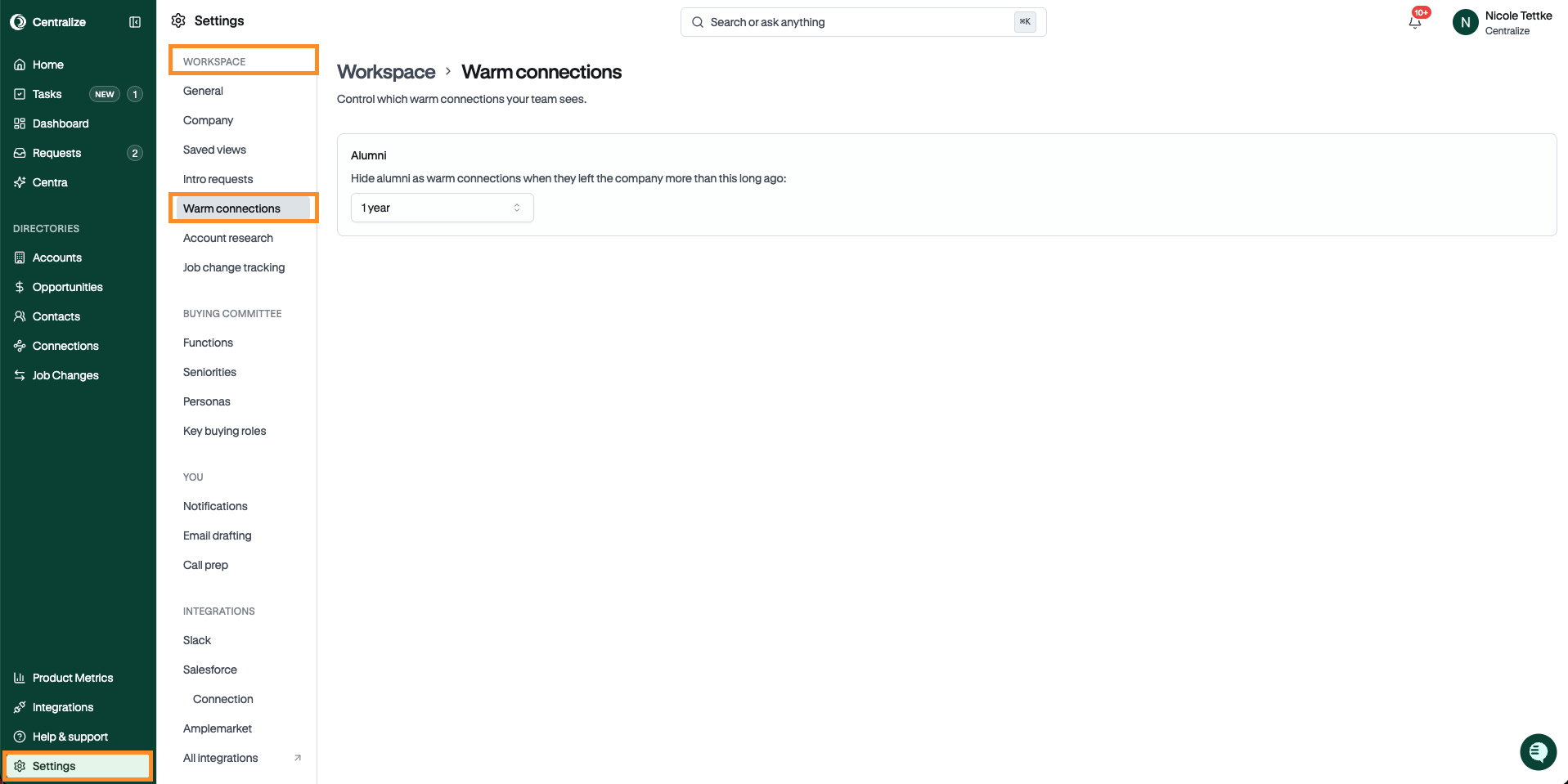
The change applies to everyone in your workspace right away. If you pick a longer time limit or Always show alumni, any hidden alumni come back.
Note: If you're not an Admin, you can see this setting but can't change it. Ask an Admin on your team if you'd like a different time limit.
Where you'll see this
Once someone is past the time limit, they no longer appear as a warm connection in:
The Warm Connections list on the account page
The warm connection icon on account map and org chart cards, and the Warm only and Connected to map filters
The warm connection section on a contact's profile
Slack notifications for new warm connections
Call Prep and Centra, Centralize's AI assistant
Tip: The Warm Connections list on an account shows Current employees by default. To see alumni who are still within your time limit, switch the filter to Alumni or All.
Request an introduction or outreach
Centralize doesn't just surface Warm Connections — it gives reps a built-in mechanism to act on them.
From any Warm Connection, click Reach Out to open the request flow.
Choose between two request types:
Request Introduction: The connecting contact introduces you directly to the target.
Request Outreach: The connecting contact reaches out to the target on your behalf.
Add Additional Context to help your colleague understand why you want the introduction. This context is for their reference and won't necessarily be included in the email.
Review the Proposed Email — a ghostwritten draft Centralize generates for the connecting contact to send. You can edit the subject line and message before sending.
Click Send Request. The connecting contact is notified via Slack.
Tip: You can also start an introduction request right from the Stakeholder Map or Org Chart — click the ⋯ menu on a contact's card and select Request Intro.
Track requests
All inbound and outbound requests live in the Requests tab, where you can see:
Status (Pending, Accepted)
Request type (Introduction or Outreach)
Account and opportunity context
Additional context added by the requester
This gives your team visibility into who's helping whom, prevents duplicate asks to the same connection, and creates a paper trail for relationship-driven pipeline.
Extend your network with partners
Centralize supports not only your company's employees, but also external parties like advisers, investors, customers, and partners. By inviting these external stakeholders to Centralize, you can surface warm connections through their networks as well.
When you create partner links, you're tapping into a broader ecosystem of first-degree connections beyond your internal team. This expands your break-in strategy across multiple avenues — your employees', advisers', customers', and partners' networks, all in one place. For example:
An adviser might know someone at a target account.
A customer might have a connection to a prospect.
A partner might have relationships in your ideal market.
To onboard external stakeholders and unlock warm connections through their networks, see Generate a Shareable Partner Invitation Link.
Slack notifications for Warm Connections
Centralize can send Slack notifications whenever new warm connections are surfaced on accounts you own. When a new warm connection is identified, you'll receive a summary DM in Slack listing the connections and how they were found.
Note: This notification is opt-in. To enable it, go to Settings → Notifications and toggle on New Warm Connections under the Slack section.
Need help?
If you're having trouble finding, filtering, or acting on Warm Connections, contact support@usecentralize.com for assistance.