Set Up Account Slack Channels
Last updated: October 30, 2026
Send account activity to Slack so the whole account team sees it without opening Centralize. Job changes post to a general channel, and can also post to an account's own channel. Tasks, owner changes, and mentions post to a channel you choose for each account.
Contents
Before you start
How channel routing works
Set your organization defaults (Admins and Owners)
Give one account its own channel
What posts to the channel (and what stays personal)
Need help?
Before you start
Slack must be connected. See 📄 Connect Slack to Centralize.
Who can do what:
Organization Admins and Owners can turn Slack notifications on or off, set organization defaults, choose general channels, and route several accounts at once.
An account's owner (or an Admin/Owner) can choose or clear that account's notification channel, as long as they have access to the account. For accounts managed in your CRM, the owner is the CRM account owner. Otherwise, it's the account's sales manager. This is the account owner, not a contact owner.
Turning individual topics on or off for an account follows your normal account settings permissions. Being able to pick an account's channel doesn't necessarily mean you can change every topic setting.
Account channels are available on all plans.
Note: Until a channel is set up for an account, that account's notifications only go to individual people (in-app, and by email or Slack DM based on their settings).
How channel routing works
In Settings → Slack (under Integrations), there are two tabs:
General channels: where job changes post. General channels only receive job changes.
Account channels: the default on/off setting for each topic (including job changes for accounts with their own channel), plus the list of accounts with their own channel (Account overrides).
Tasks, owner assignments, and other account topics only post for accounts that have their own channel set, with those topics turned on.
Set your organization defaults (Admins and Owners)
Go to Settings → Slack and turn on Slack notifications.
In General channels, choose where job changes post.
In Account channels, turn on the topics you want by default: job changes, owner assignments, notes with mentions, task mentions to invited teammates, task assignments, task updates, task completions, and task cancellations.
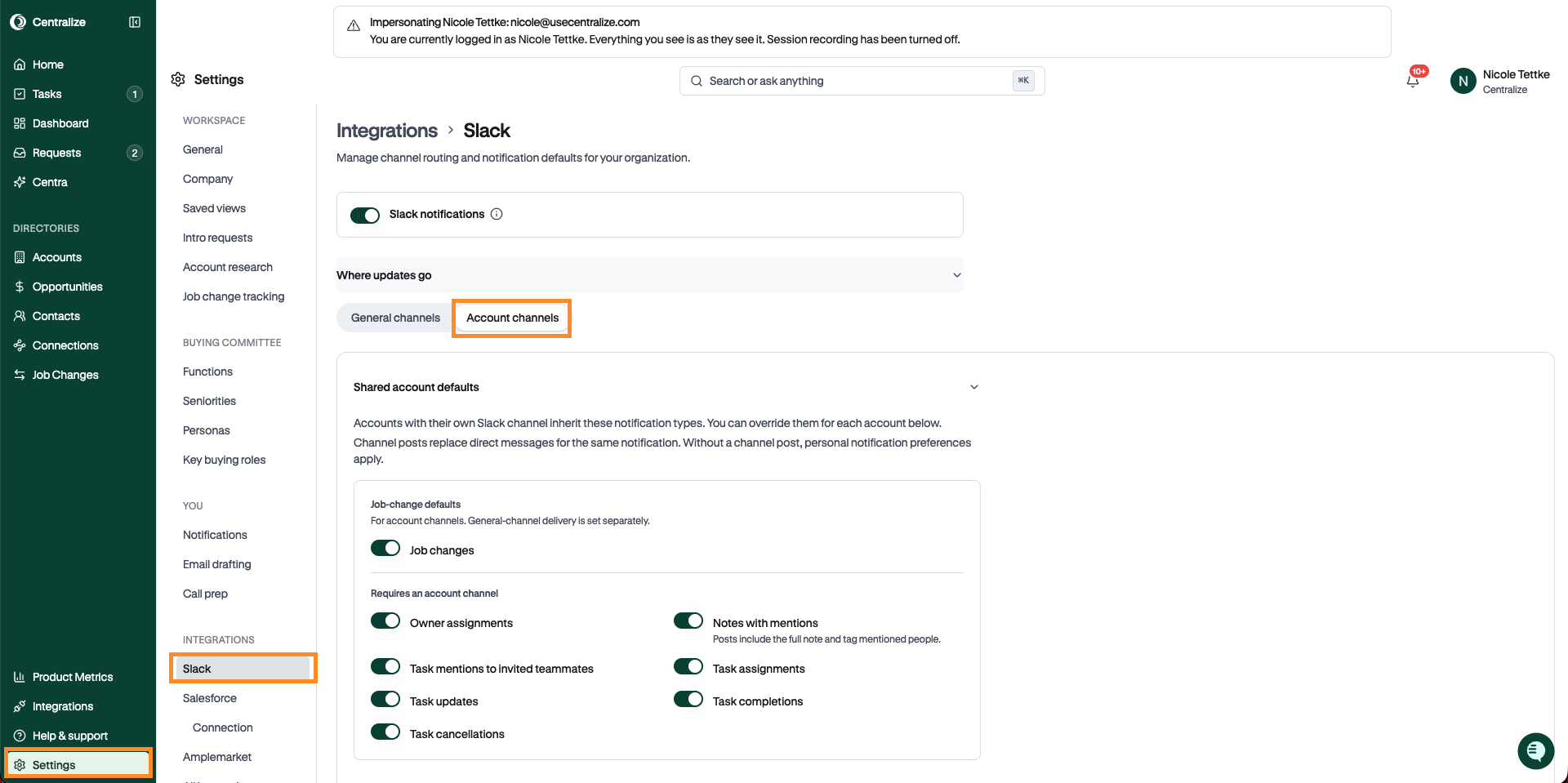
Save your changes.
Then give each account its own channel (below). These topic defaults apply to every account that has one.
Tip: Using a private channel? Add @Centralize to that channel in Slack first, or it won't appear in the list. Public channels show up automatically.
Important: If a channel includes people outside your company, like a shared customer channel, Centralize warns you before you save. Account notifications can include internal notes, tasks, and deal details — double-check that your customer can't see the channel.
Give one account its own channel
Tasks, owner assignments, and other account topics need a channel set for that account.
From settings:
Go to Settings → Slack and scroll to Account overrides.
Check the box next to the account. You can select several accounts to update them together. (Updating several accounts at once is for Admins and Owners.)
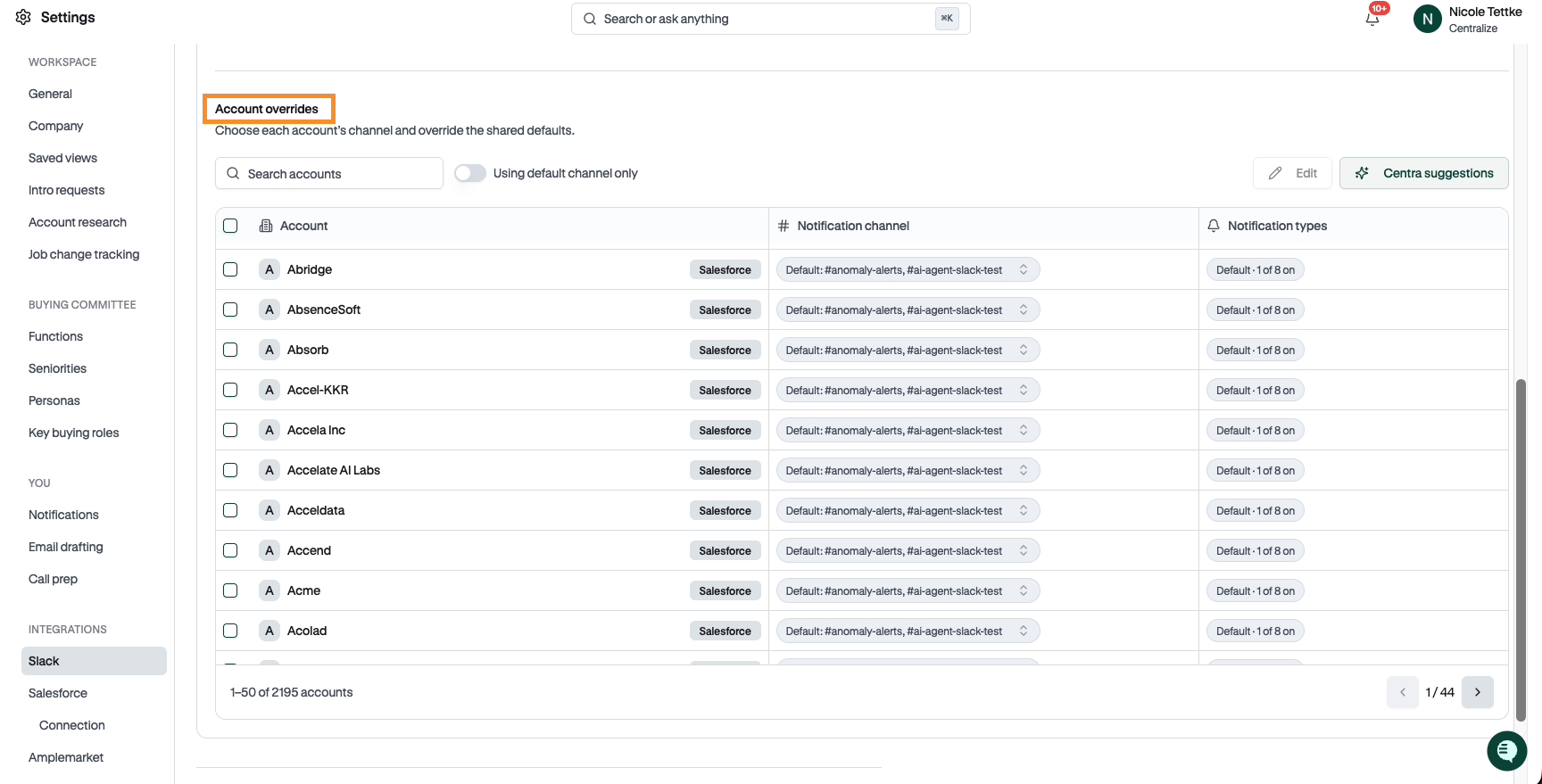
Click Edit.
Under Notification channel, choose the Slack channel for that account.
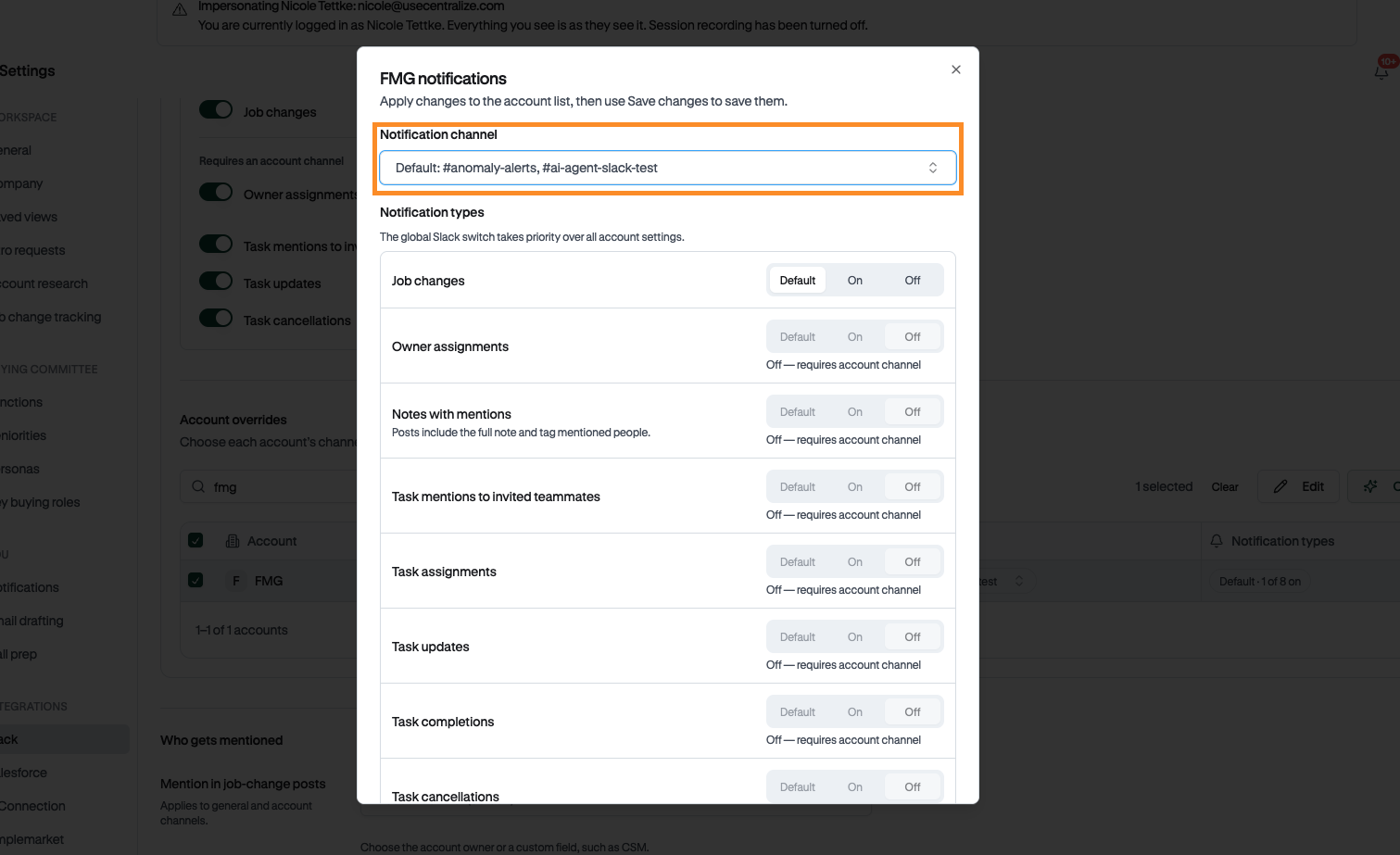
Under Notification types, set each type to Default (use your organization’s setting), On, or Off.
Apply your changes, then click Save changes.
From the account:
Go to Accounts and open the account you want.
Click Account Settings in the top right.
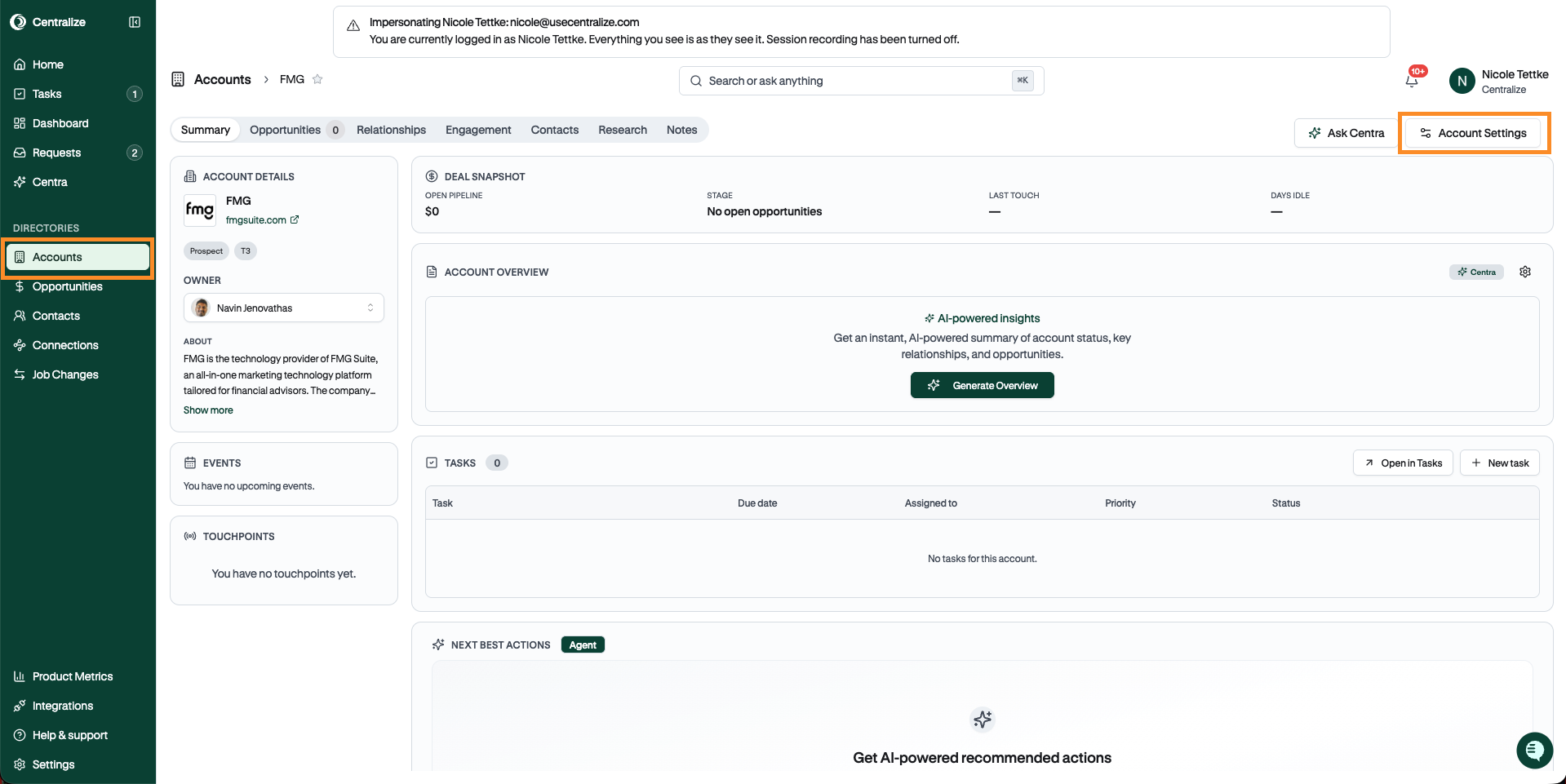
Go to Account alerts and choose the channel. Account owners can do this for their own accounts.
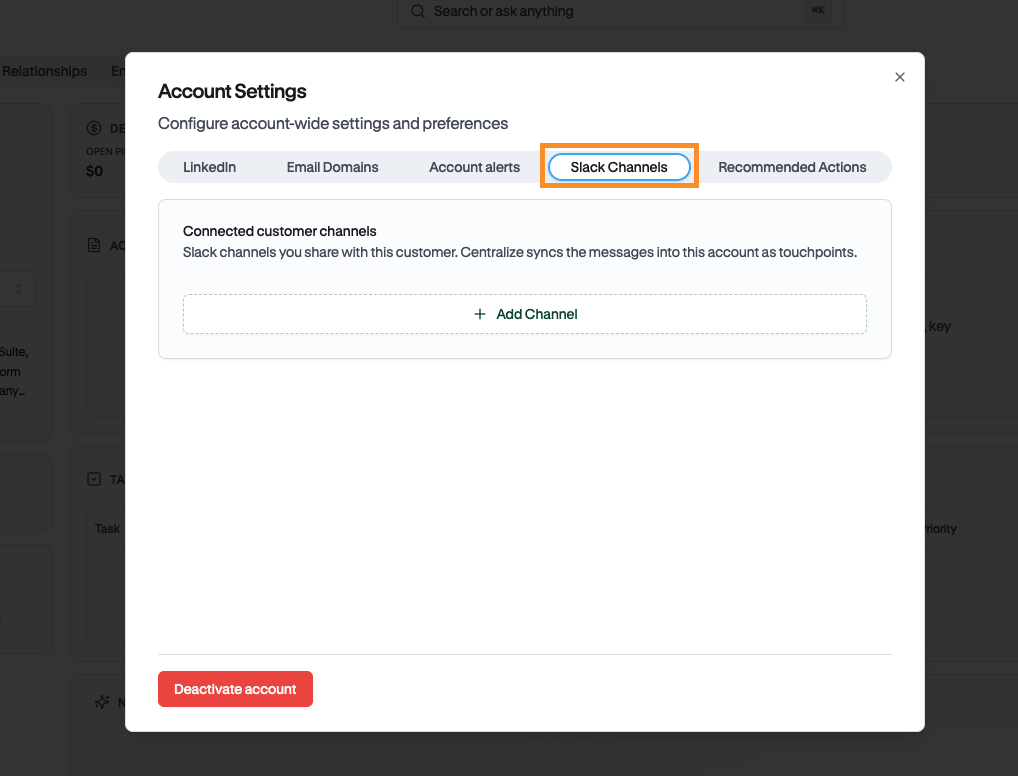
To go back to your organization’s defaults, edit the account and set the channel and each notification type back to Default.
Note: The main Slack switch in Settings → Slack overrides every account’s settings. If it’s off, nothing posts to any account channel.
What posts to the channel (and what stays personal)
Job changes post to your general channel, and can also post to an account's own channel. Every other topic posts only to an account's own channel, and only if that topic is turned on. When a notification posts to a channel, it can replace the matching personal Slack DM.
These always go to people individually, never to the channel:
Task comments added only in Centralize
Task mentions of existing teammates
Owner alerts for new notes and tasks on their contacts
Each person controls their own email and Slack DMs in 📄 Notification Settings. To work on tasks from the channel, see 📄 Work on Tasks From Slack: What Syncs and Which Way
Need help?
Contact support@usecentralize.com.