Invite a Teammate From a Note or Task
Last updated: October 19, 2026
Need help from a colleague who isn't in Centralize yet? Invite them straight from the note or task you need them on, so they join with context.
Contents
Invite someone from your work
What happens when you mention someone outside your organization?
For admins: control who can be invited
Need help?
Invite someone from your work
You can invite from a note mention, a task mention, a task's Assignee field, or the contact Owner picker.
Type @ (or open the Assignee or Owner picker) and enter your colleague's work email.
Select the invite option.
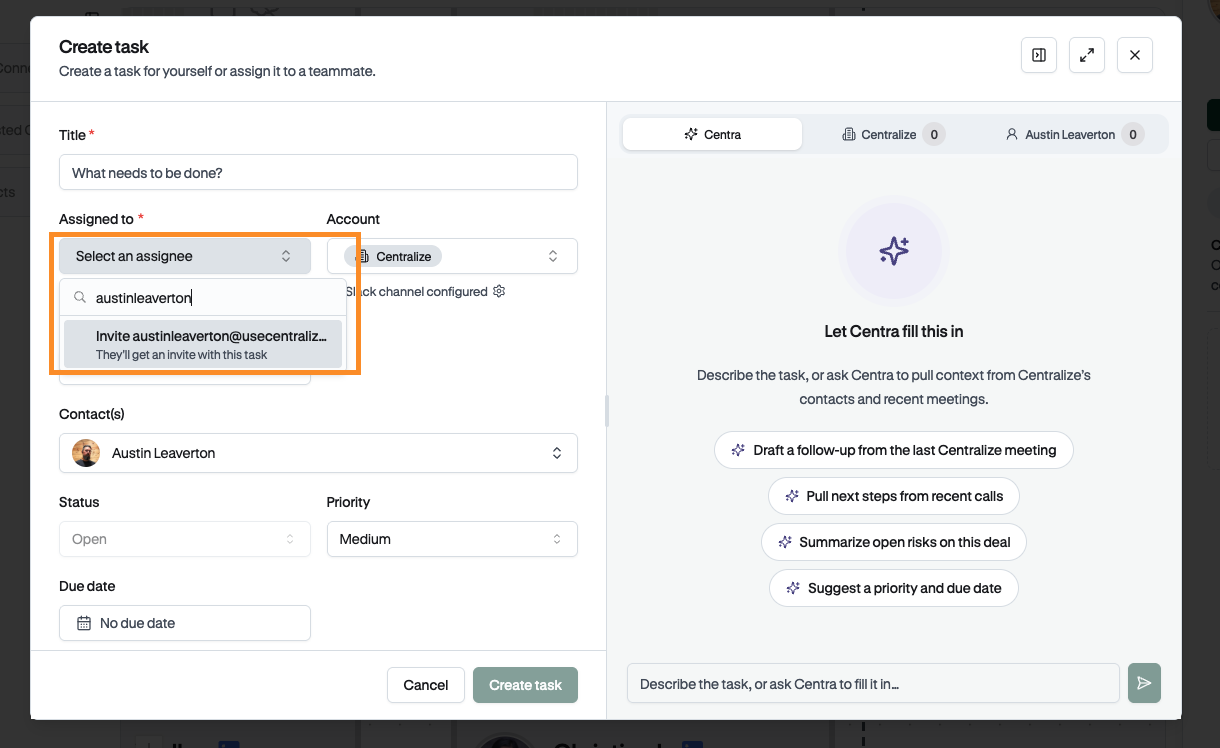
Save the note or task (if you’re inviting from the Owner picker, the invite sends when you pick them).
Your colleague gets an invitation, accepts it, and signs in. If your company uses single sign-on (SSO), they're sent to your company's login.
When your colleague accepts an invite from a note or task, they land on that note or task, as long as they have access to it. Otherwise, they start on the Home page.
You can see, resend, or cancel pending invitations in Settings → Members under the Invited tab.
Note: Joining the workspace doesn't give someone access to every account. Your normal account access rules still apply.
What happens when you mention someone outside your organization?
It depends on your workspace's invitation settings. By default:
Allow invites from mentions is off.
Allow mention invites to external domains is off.
If either is off, you won't see the option to invite that person. Ask your admin to change the settings below.
For admins: control who can be invited
Go to Settings → Members (under Administration) and click the gear icon (Mention invite settings).
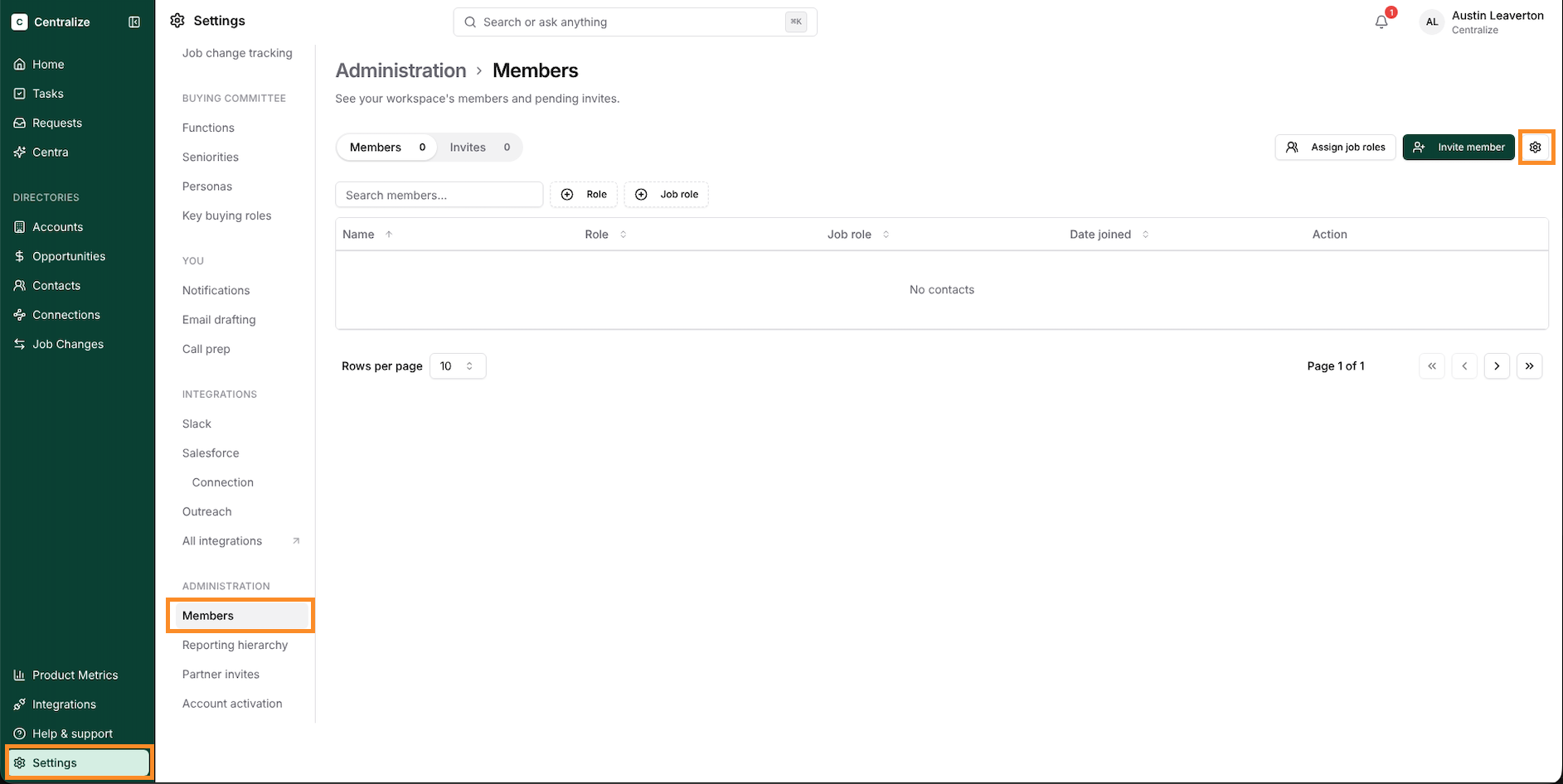
Turn on Allow invites from mentions.
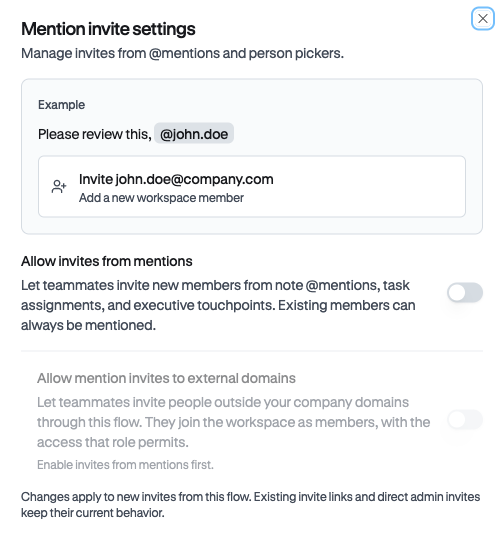
Optional: turn on Allow mention invites to external domains to let people invite email addresses outside your company. This is a single on/off switch, not a list of specific domains.
Only admins can change these settings. On the Standard plan, which doesn’t have an admin role, any member can.
To add users directly, deactivate users, or set up SSO, see 📄 Managing Users: Adding, Deactivating, and SSO Setup.
Need help?
Contact support@usecentralize.com.