Add Contacts to an Outreach Sequence or Gong Engage Flow
Last updated: October 26, 2026
Send contacts from Centralize straight into an Outreach sequence or a Gong Engage flow — from the org chart, your contact lists, or LinkedIn — without exporting anything or switching tools.
Contents
Before you start
Add a single contact
Add several contacts from a contacts list
Add a contact from LinkedIn
What happens after you add contacts
Limitations
Need help?
Before you start
You need Outreach or Gong Engage connected in Centralize. Check this on the Integrations page.
Outreach and Gong Engage work the same way. Outreach calls them sequences, and Gong Engage calls them flows.
Add a single contact
Find the contact on the org chart or in a contacts list.
Open the Reach out menu.
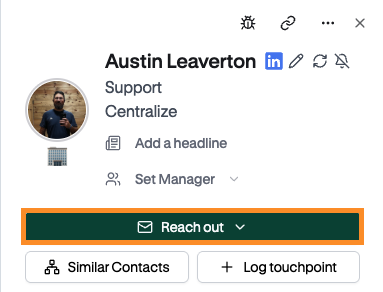
Click Add to Sequence (Outreach) or Add to Flow (Gong Engage).
Choose the sequence or flow.
Turn on Require phone number if your sequence includes calls. Centralize finds phone numbers for any contacts missing one before adding them.
Click Add to Sequence or Add to Flow.
Add several contacts from a contacts list
You can add contacts in bulk from the main Contacts page or from an account's Contacts tab.
Select the contacts you want to add.
In the toolbar, click Add to Sequence or Add to Flow.
Choose the sequence or flow. The window confirms how many contacts you're adding.
Turn on Require phone number if needed.
Click Add to Sequence or Add to Flow.
Tip: Adding from the Suggested tab works the same way. Centralize enriches those contacts first, then asks you to click Confirm & Continue.
Add a contact from LinkedIn
Open the contact's LinkedIn profile and click the Centralize Chrome Extension icon.
Add the contact to the map if they aren't on it yet.
In the profile panel, open Add to Outreach Sequence or Add to Gong Engage Flow and choose the sequence or flow.
Turn on Require phone number if needed.
The extension shows "Adding to…" while it works, then "Added to…" when it's done.
What happens after you add contacts
Centralize shows a progress screen with how many contacts are completed, failed, or pending.
Note: You don't have to wait on this screen. Click Close whenever you're ready — Centralize keeps enriching and adding your contacts in the background.
Limitations
You need your own Outreach or Gong Engage connection to add contacts.
Each contact must be on an account in Centralize.
Need help?
If something looks off or you have questions about adding contacts to a sequence or flow, reach out to us at support@usecentralize.com.
Related articles