Manage Team Integrations
Last updated: October 20, 2026
Use the Integrations dashboard to audit which tools your reps have connected, verify LinkedIn networks are synced, and make sure everyone on your team is set up to capture the right activity.
Contents
Access the Integrations dashboard
Review LinkedIn connections
Export LinkedIn sync status
Review all integrations by rep
Troubleshooting
Need help?
Access the Integrations dashboard
In the left navigation, click Integrations. You can also get there from Settings > All integrations.
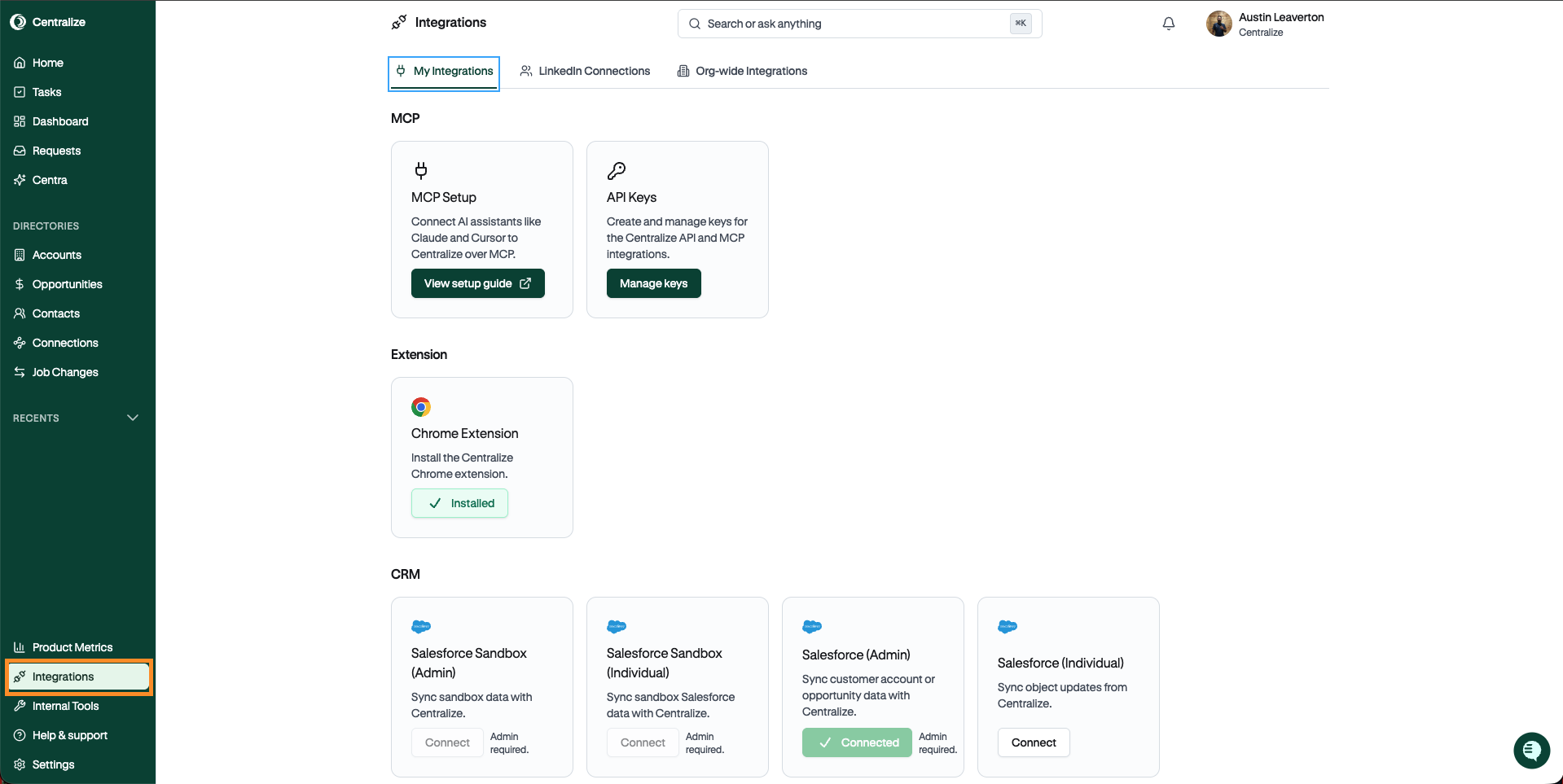
You'll land on the Integrations dashboard, where you can review all connected tools and LinkedIn network syncs across your team.
Review LinkedIn connections
The LinkedIn Connections tab lets you see which reps have connected their LinkedIn network and whether their connections are actively syncing.
Click the LinkedIn Connections tab.
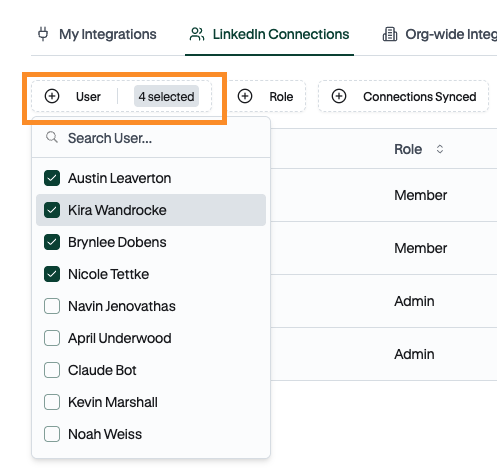
Open the User dropdown and select the reps on your team you want to review.
Once users are selected, you'll see whether their LinkedIn connections are synced, and when the last sync occurred.
Tip: If a rep's connections aren't syncing, ask them to reconnect their LinkedIn integration from their personal Settings page.
Export LinkedIn sync status
You can download the list of who has and hasn't synced their LinkedIn connections as a CSV file.
On the LinkedIn Connections tab, apply any filters you want. The export includes only the users the table is showing.
Click Export CSV in the top right, next to the total count.
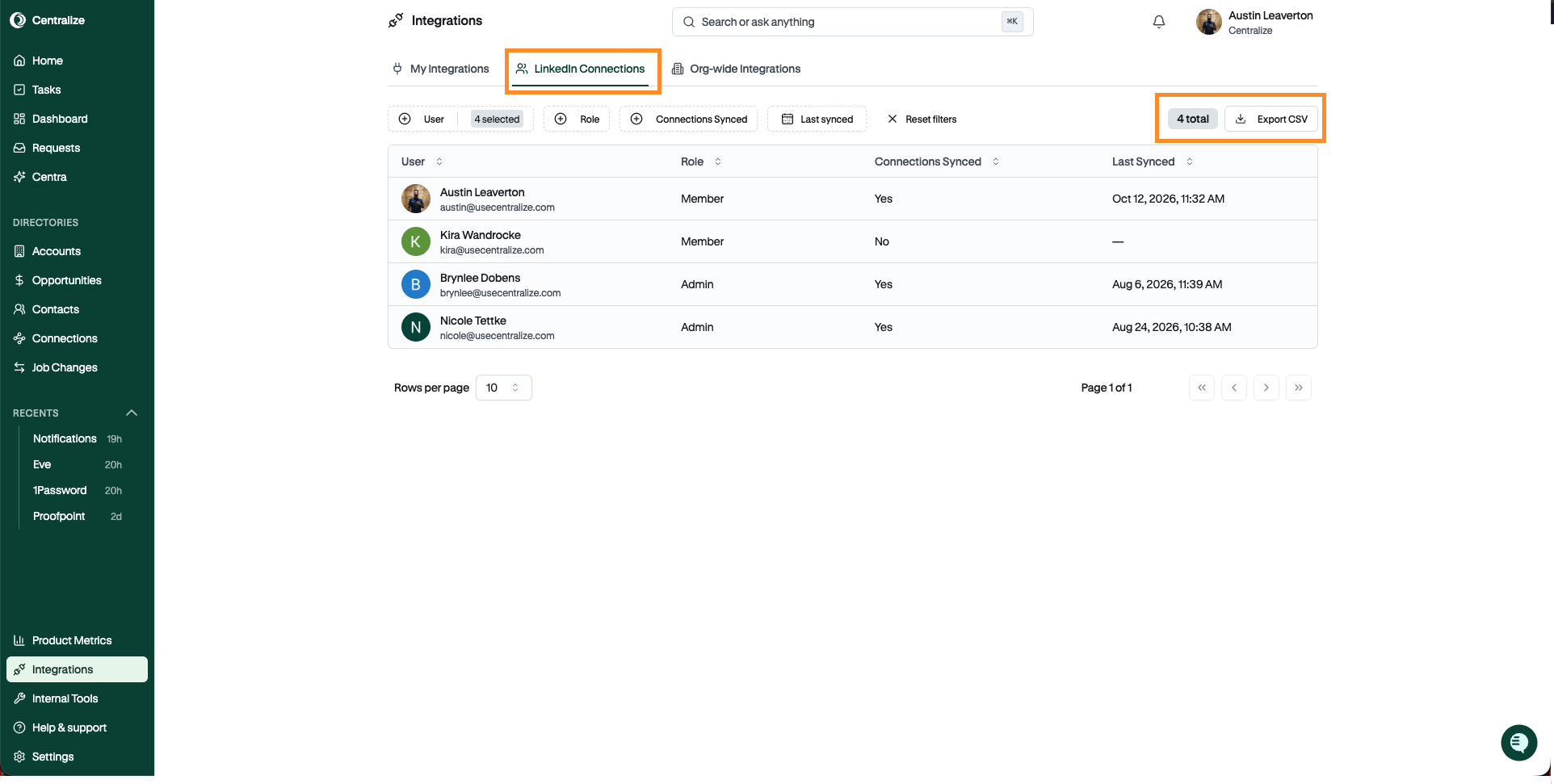
The file includes each user's Name, Email, Role, Connections Synced (Yes/No), and Last Synced date.
Tip: To see who still needs to set up LinkedIn sync, filter to users who haven't synced before you export.
Review all integrations by rep
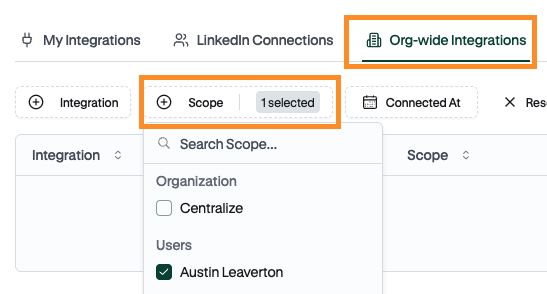
The Org-wide Integrations tab gives you a full view of every integration each rep has connected, filterable by user.
Click the Org-wide Integrations tab.
Open the Scope filter and select the reps you want to review.
Review the list of connected integrations for each user.
Best practice: Make sure every rep has connected their email and calendar integrations at minimum — these are required for Centralize to capture touchpoints and activity data accurately.
Important: Don't see a rep in the User or Scope dropdown? This means they haven't set up their Centralize account yet. Ask them to log in at app.usecentralize.com. If they don't have credentials, they should request access from their admin or contact support@usecentralize.com.
📹 Walkthrough: How To Manage Integrations
Troubleshooting
Issue | What to try |
|---|---|
LinkedIn connections not syncing | Ask the rep to disconnect and reconnect LinkedIn from their Settings page |
Last sync date is outdated | Check if the rep's LinkedIn session is still active — they may need to re-authenticate |
Required integrations not connected | Share the integration setup guide with your rep and ask them to connect email and calendar |
Need help?
Reach out to support@usecentralize.com or visit usecentralize.com.