Managing Users: Adding and Deactivating
Last updated: October 26, 2026
Add teammates to Centralize as your team grows and deactivate them when they leave — all without losing any of the data or history they've built up.
Contents
Add new users
Deactivate a user
Single sign-on (SSO)
Need help?
Add new users
Adding a teammate gives them their own Centralize login and uses one of your organization's license seats. You can invite one person or up to 50 at a time.
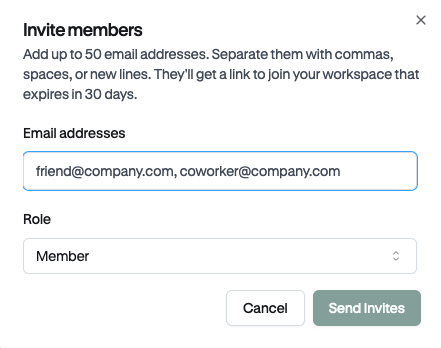
Click Settings at the bottom of the left sidebar, then under Administration, select Members.
Click Invite member.
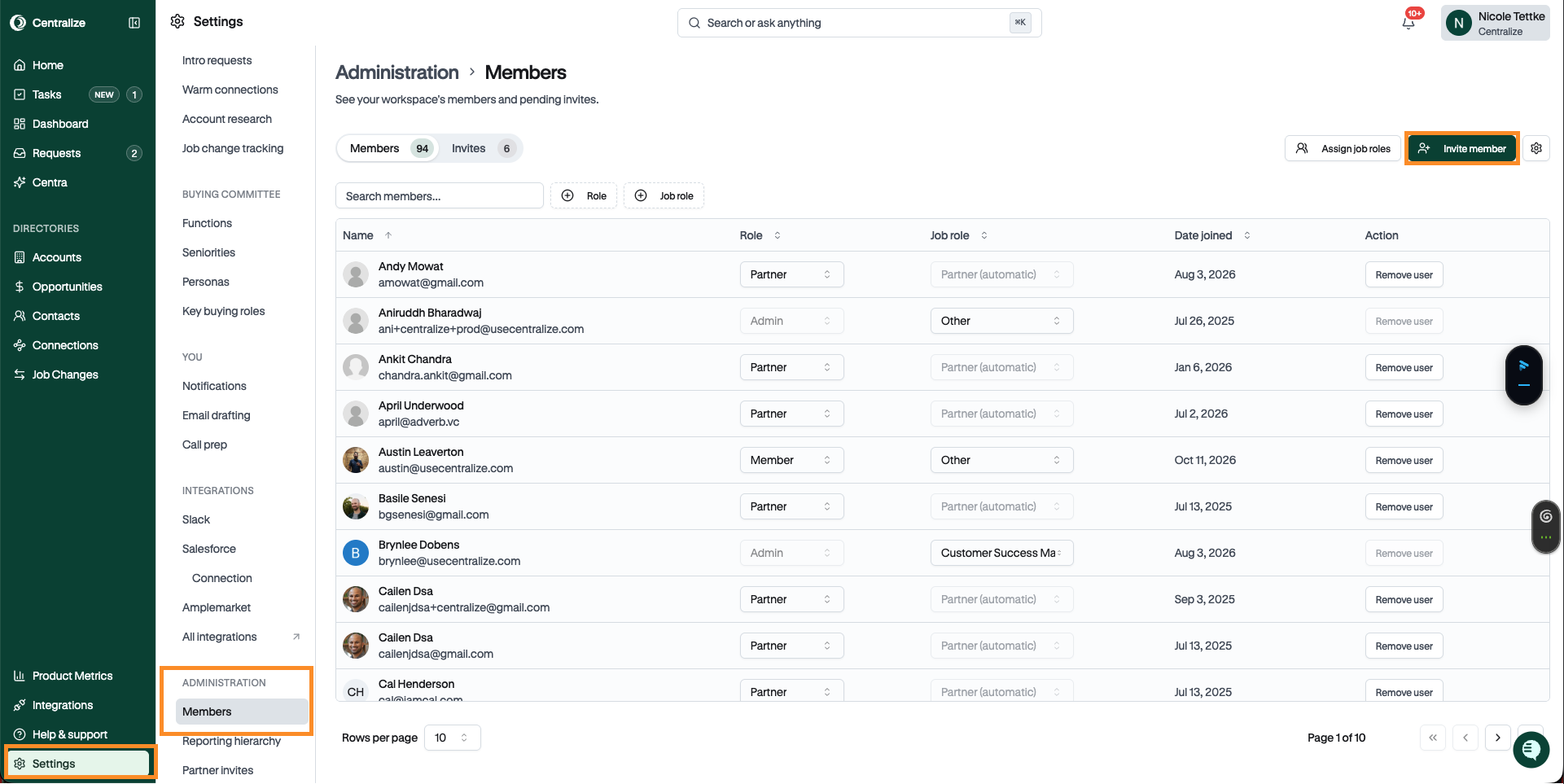
In the Invite members window, enter one or more email addresses. Separate them with commas, spaces, or new lines.
Choose a Role. It defaults to Member, and it applies to everyone in this batch. To give people different roles, send separate invites.
Click Send Invites.
Invites expire after 30 days. You can see, resend, or cancel pending invites on the Invited tab. You can also invite a colleague straight from a note or task — see 📄 Invite a Teammate From a Note or Task.
If some invites can't be sent, Centralize shows how many need attention, with a status next to each email. For example:
"Enter a valid email address."
"This email already belongs to a Centralize account."
Note: If you see "This workspace has too many pending invites," ask an admin to cancel some old invites on the Invited tab before sending more.
If your organization uses SSO, new users don't need an invite. They get a Centralize account the first time they sign in with SSO.
Deactivate a user
Deactivating a user is safe and non-destructive — it only removes their access, and nothing they created is deleted.
Click Settings at the bottom of the left sidebar, then under Administration, select Members.
Find the teammate you want to remove.
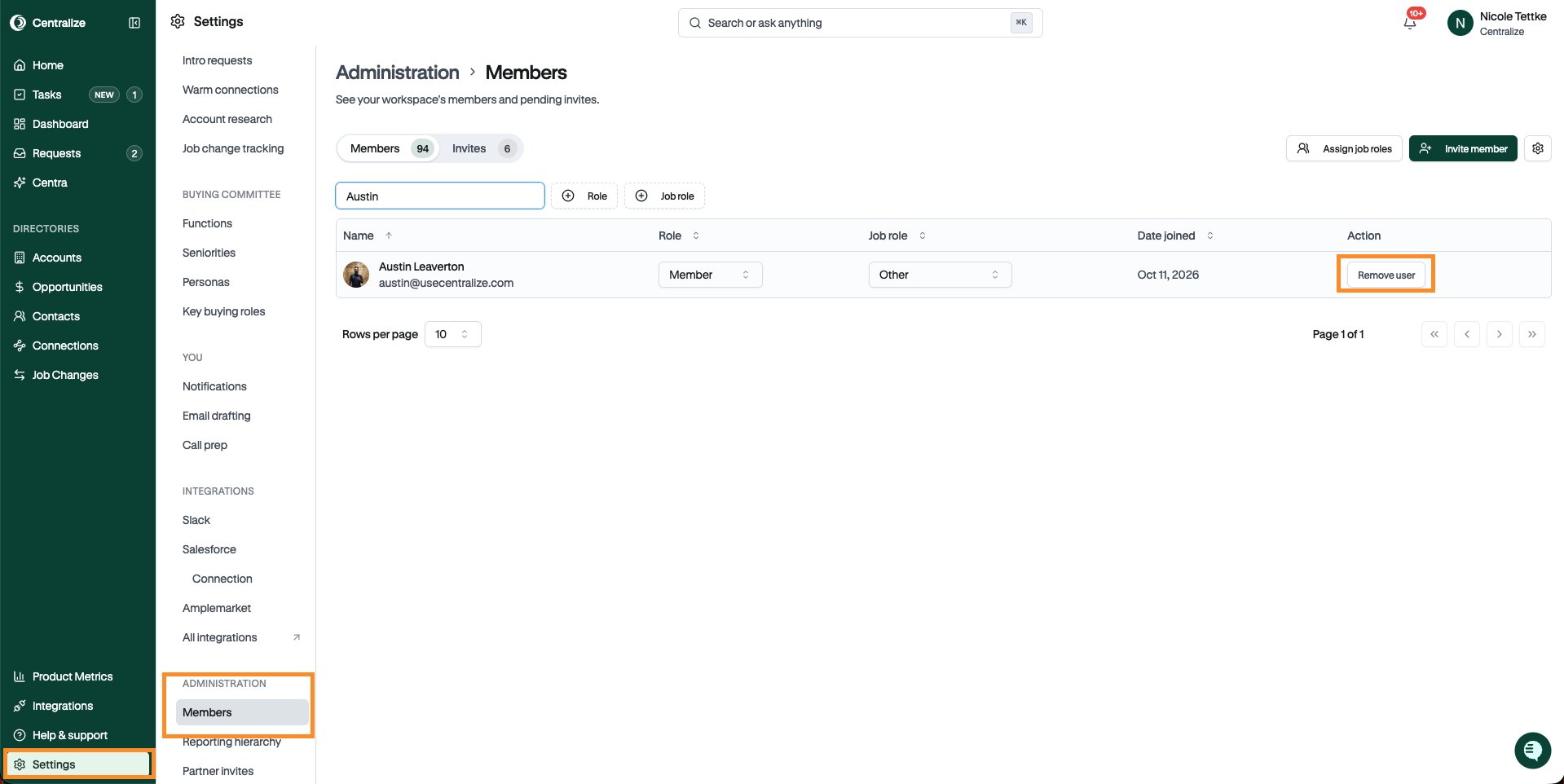
Select the option to deactivate their account.
When you deactivate someone, they immediately lose the ability to log in or act as a member of your organization — that's the only immediate effect. Everything tied to that person is preserved: notes they wrote, activity and touchpoints they logged, calendar events and meetings, the contacts and accounts they worked with, and their contributions to your reporting and dashboards. Historical attribution (for example, "added by" that rep) continues to show up correctly, so your team's records and analytics stay complete.
Note: If the deactivated teammate had connected their LinkedIn account for warm introductions, those connections stay available to your team by default. If you want to remove them (for example, once someone has fully left the company), Centralize can remove them separately through a dedicated "Remove connections" action. This can't be undone, though the person can re-sync their LinkedIn connections later if they return to your team.
If your organization uses SSO, removing someone from your identity provider stops them from logging in, but they still show as a member until you deactivate them here.
Single sign-on (SSO)
Want your team to log in with your company's identity provider, like Okta, Google or Microsoft Entra? See 📄 Set Up Single Sign-On (SSO).
Need help?
If you're having trouble inviting or deactivating a user, contact support@usecentralize.com for assistance.
Related articles