Contact Owners, Following Contacts, and Follow-Up Tasks
Last updated: October 16, 2026
Make it clear who owns each relationship at an account — including pairing your executives with their counterparts — and keep the right people in the loop as those relationships change.
Contents
Assign a contact owner
Pair an exec with a customer exec
Create a follow-up task or log a touchpoint
Follow a contact
What owners and followers are notified about
Need help?
Assign a contact owner
A contact owner is the teammate responsible for that relationship on that account.
Open a contact on the Stakeholder Map.
Click Add owner and choose a teammate.
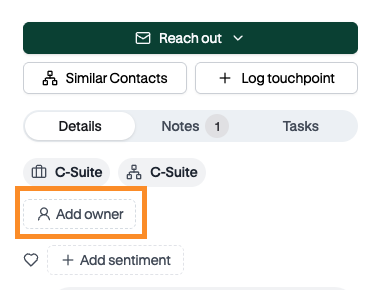
The owner shows on the Stakeholder Map, the contact card, and the Contacts table, where you can filter by owner. You can change or remove the owner at any time.
Note: Setting an owner doesn't create a task on its own. But when anyone creates a task from that contact, the owner is filled in as the assignee (you can change it). Owners are also automatically subscribed to updates on their contacts.
Need to make someone the owner who isn't in Centralize yet? You can invite them by email from the owner picker, if your workspace allows it. See Invite a Teammate From a Note or Task.
Pair an exec with a customer exec
Make your exec the contact’s owner, then assign them a follow-up task:
On the Stakeholder Map, open the customer exec's contact card.
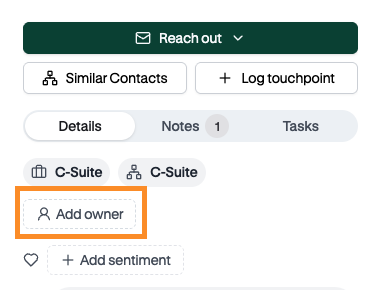
Click Add owner and choose your internal exec.
Click Reach out → Create task. The contact, account, and your exec (as the assignee) are filled in. Add context and a due date, then save.
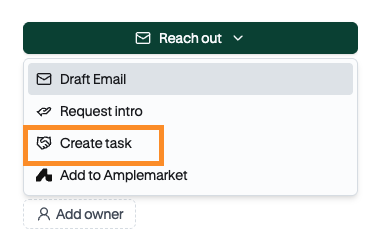
Your exec gets the task by email and Slack, so they don’t need to be in Centralize every day to act on it.
Create a follow-up task or log a touchpoint
Both actions are in the contact’s panel. Click a contact card to open it.
Reach out ▾ → Create task creates a task for a future interaction. The contact, account, and owner (as the assignee) are filled in for you. Add a title, context, and a due date, then save. On the Org Chart, you can also hover over a contact and choose Touchpoint to do the same thing.
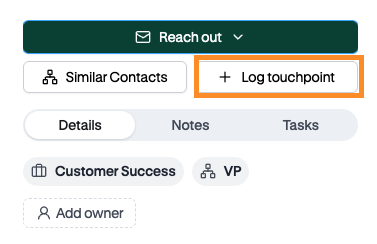
Log touchpoint records an interaction that already happened.
Follow a contact
Anyone can follow a contact to get updates without becoming its owner.
Open the contact card.
Click the bell icon to follow. Click it again to stop.
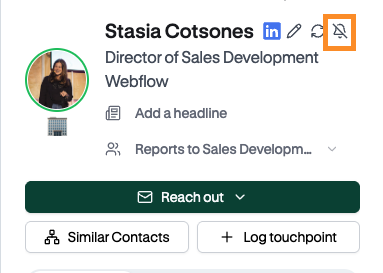
Owners are followed automatically and can use the same bell to mute a contact. To see or change everything you follow, go to Settings → Notifications.
What owners and followers are notified about
Owners are notified when a teammate adds a new note or task on their contact. If you're already notified because you're the assignee or were mentioned, you won't get a second notification for the same thing.
Owners and followers get updates when a contact's sentiment, buying role, main priorities, or touchpoints change. These show in your Centralize inbox right away. By email and Slack, they're bundled into one daily digest, so owning lots of contacts won't flood you.
Changes you make yourself don't notify you.
To choose which of these reach you by email or Slack, see 📄 Notification Settings.
Need help?
Contact support@usecentralize.com.