Suggested Org Chart: When to Use It and How It Works
Last updated: October 27, 2026
Contents
Why use Suggested Org Chart?
How it works
FAQ
Limitations
Need help?
Why use Suggested Org Chart?
Suggested Org Chart automatically drafts a reporting structure for an account based on its contacts’ job functions and seniority, so you're not building the hierarchy manually from scratch. It's powered by Centra, Centralize’s AI assistant, which proposes contacts, groups, and reporting lines as “suggested” (ghost) nodes on top of your real org chart for you to review.
Use it when:
You’re starting fresh on an account and don’t know its structure yet, especially a large or unfamiliar one
You want a working draft to react to instead of placing every contact manually
You’re prepping for a QBR, account review, or deal strategy session and need a clear picture of reporting lines and business units fast
It’s not meant to replace your judgment — it’s a draft you review and correct.
How it works
Generate suggestions
Generate. On a new account's org chart, use the guided setup; on an existing chart, click Generate Suggestions (shown as Show Suggestions if suggestions already exist) in the toolbar, then Regenerate inside the panel. Pick the business units (Functions) you want suggested — each becomes its own group, populated with mapped/suggested contacts at Director+ by default (adjustable with Minimum seniority) — and add free-text guidance in the Additional guidance field to steer the result, or pick from the preset pills: “Prioritize the GTM leadership team,” “Group by region,” “Group by product line,” “Focus on technical decision makers,” or “Only include people we have met with.”
Wait for suggestions. Generation can take a few minutes. You can leave the page — you'll get an email and a Slack DM ("Suggested org chart generated for {account}") when it's ready.
Review suggested nodes. Suggested contacts and groups appear as dashed/ghost nodes layered on your existing chart, each labeled with a confidence level (High, Medium, Low, or Very Low).
Confirm or decline. Accept or reject suggestions one at a time, or use Confirm all / Decline all in the toolbar to move faster.
Refine with chat. Use the “Ask Centra to refine the chart…” chat for follow-up adjustments (e.g., “add an EMEA Sales group under Sales”) without starting over. The chat also offers starter questions like “Why did you structure the chart this way?”, “Which suggestions are you least confident about?”, “Who anchors the top of the chart?”, and “Who else should be added?”
Zoom out. After generation, the canvas fits to show the new suggestions — if you don’t see anything, use the fit-to-view / fullscreen controls to zoom out.
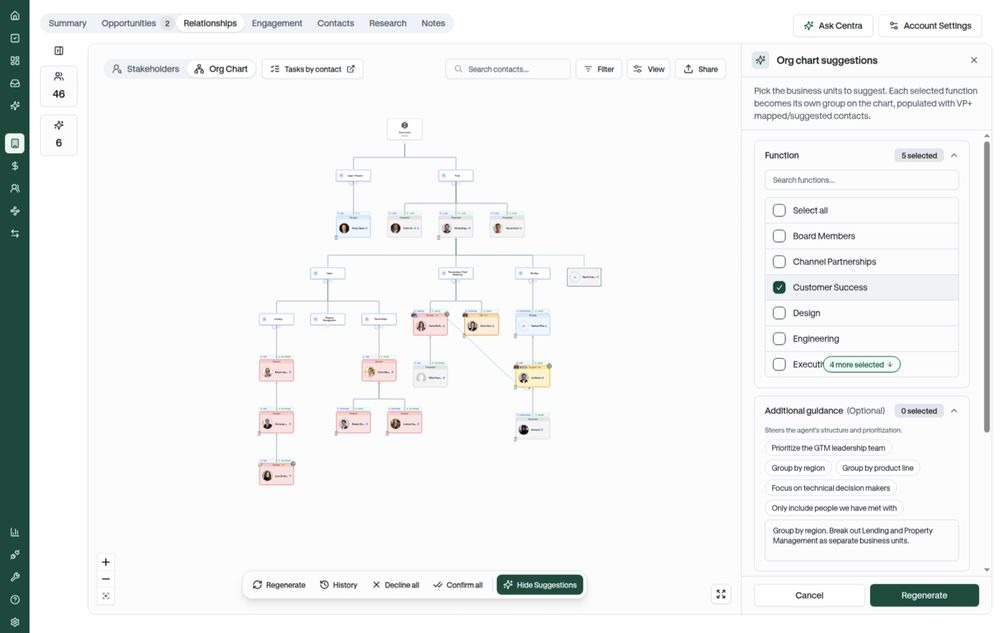
The generate/regenerate panel: pick Functions to suggest, then add Additional guidance (preset pills or your own text).
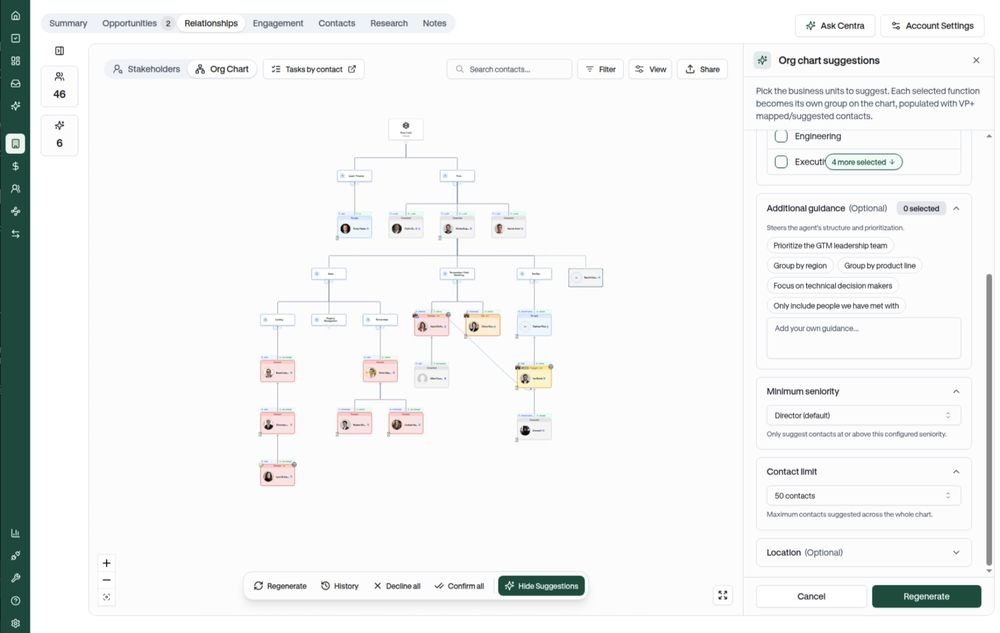
Scroll down in the same panel for Minimum seniority and Contact limit.
Default structure
By default, Centra proposes a simplified hierarchy: CEO → C-suite → Functions (e.g., Sales, Engineering, Marketing) → Contacts. Regional and divisional breakdowns are no longer included automatically — if you want that level of detail (e.g., “EMEA Sales” or a subsidiary like “Hulu” under “Disney”), ask for it in the guidance field when you generate or regenerate.
Groups and business units
Groups represent business units, divisions, or teams rather than individual people. Groups can contain other groups (for example, a regional group nested inside a functional one) and can be collapsed or expanded to reduce clutter on large accounts.
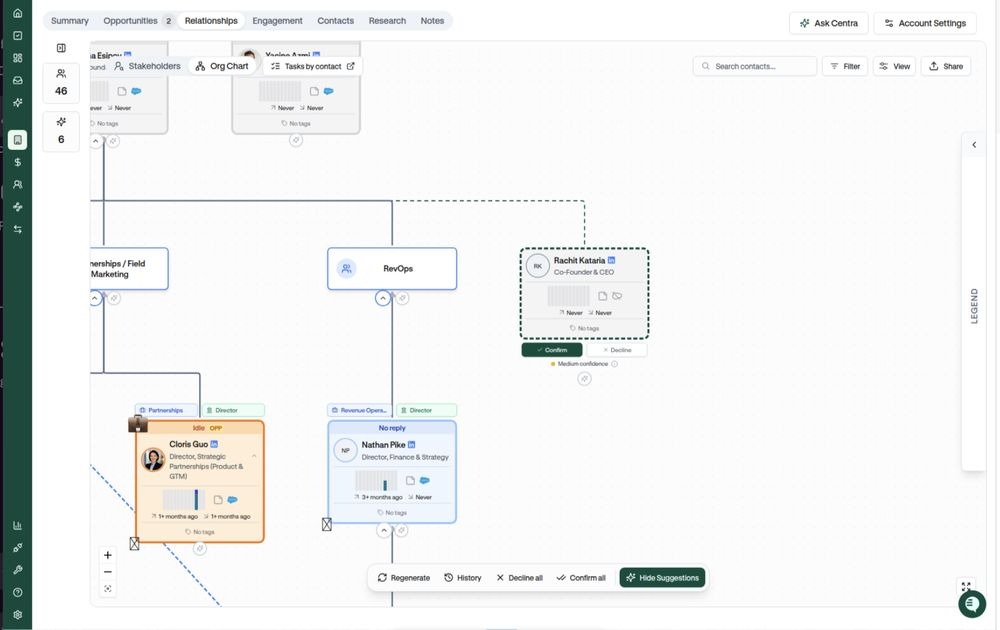
A suggested (ghost) node with Confirm / Decline, a confidence label, and Confirm all / Decline all in the toolbar.
Seniority and reporting lines
Centra infers each contact’s function (department) and seniority (e.g., VP, Director, Manager) from their title and other signals, then builds reporting lines accordingly — for example, VPs report to SVPs, who report to EVPs. Board members are intentionally excluded from suggestions.
Controlling chart size
From the generate/regenerate panel, you can narrow suggestions using:
Contact limit — caps the total number of suggested contacts across the whole chart (10, 20, 50, or 100; defaults to 50)
Minimum seniority — only suggest contacts at or above a seniority level (defaults to Director+)
Function picker — restrict suggestions to specific functions
On large accounts, there are often more eligible contacts than your Contact limit allows. When that happens, Centra splits the slots across the functions you selected based on each team's size, then fills each team's share starting with the most senior titles. Narrowing to fewer functions or raising the Contact limit gives each team more room.
Placeholders
If you know a role exists but don’t know who fills it, you can add a placeholder for that seat — Centra may later propose a specific person to fill it, which you still confirm or decline like any other suggestion.
Add a contact with a suggested reporting line
When you add someone new to the chart, Centralize can suggest who they report to — no full regeneration needed.
In the sidebar, find the contact you want to add.
Click the sparkle icon (Add with suggested reporting line) next to Add to org chart.
The contact is added to the chart with a Likely reports to suggestion underneath.
Click Confirm to keep the reporting line, or Decline to remove it and set the manager yourself.
If Centralize can't find a strong match, it won't suggest a manager, and you can set the reporting line yourself. See Update a Contact’s Reporting Line.
Confirmed vs. unconfirmed lines
Reporting lines are confirmed by default once you've accepted them. Centra mostly proposes changes to lines that are still unconfirmed, but in some cases it may suggest moving someone already on your chart, even if their line is confirmed. For example, it might place them under a newly suggested manager or team.
These moves only happen if you accept them. Confirm all includes them, so review any suggestions that involve people already on your chart before confirming all.
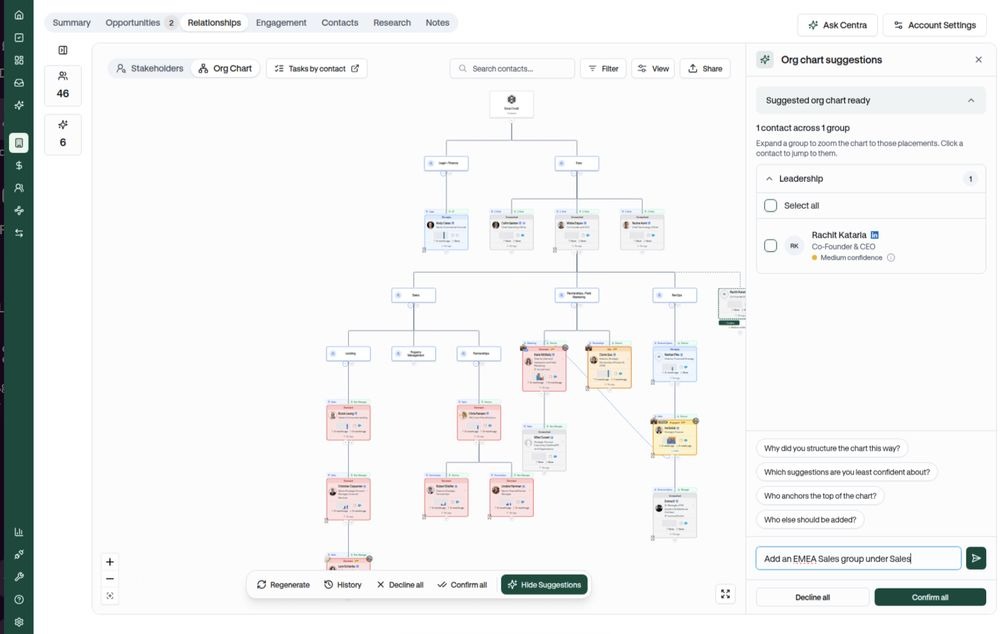
Once suggestions are ready, use the refine chat and its starter questions to adjust the chart without regenerating from scratch.
Tip: Use the “Ask Centra to refine the chart…” chat instead of regenerating from scratch when you just need small adjustments. It only updates suggestions; your existing chart doesn't change until you confirm them.
FAQ
How does Centralize decide which company someone belongs to?
Centralize uses the company listed as the person's current job in their LinkedIn experience section, matched to the LinkedIn company pages linked to the account. Their LinkedIn headline doesn't change which company they're matched to. For example, if someone's headline says "Product Leader at Acme Labs" but their current job is listed under Acme Corp, they'll show up under Acme Corp.
Does Centra use the LinkedIn headline at all?
Yes, but only to understand the person's role. Centra reads the headline alongside their title to get a better sense of their function and seniority, which can affect where they're placed within a team.
Why isn't someone showing up under a subsidiary?
By default, Suggested Org Chart groups people by function (like Sales or Engineering), not by subsidiary. To break out a subsidiary, ask for it in the Additional guidance field when you generate or regenerate (for example, "Group Acme Labs as its own business unit"). This works best when the person's LinkedIn experience lists the subsidiary as their current company. If it lists the parent company instead, double-check that they landed in the right group.
Why isn't someone I expected showing up in the suggestions?
On large accounts, Centra often has more eligible contacts than your Contact limit allows, so it starts with the most senior titles (EVP, then SVP, then VP, and so on). Being on the Stakeholder Map or an opportunity doesn't move someone up the list, so VPs and Directors can get crowded out. To make sure specific people end up on the chart, add them directly with Add with suggested reporting line, or generate again with fewer functions and a higher Contact limit.
Limitations
Suggestions are a draft, not ground truth. An occasional contact can be placed incorrectly if their title is classified into the wrong function or seniority level — always review before relying on the chart.
Each generation suggests up to your Contact limit (50 by default, 100 max). On large accounts, narrow by function, raise the Contact limit, or add specific people directly.
If generation fails partway through, you'll see an error (e.g., "Generation failed" or "Failed to generate suggestions") and can retry.
Board members are not included in suggestions by design.
Generation runs one account at a time; there's no bulk/multi-account generation yet.
A suggested reporting line for a new contact only points to someone already on the chart. It won't add the rest of that person's management chain for you.
Full Video Walkthrough: Suggested Org Chart Tutorial
Need help?
If something looks off or you have questions about Suggested Org Chart, reach out to us at support@usecentralize.com.
Related articles