Starred Accounts
Last updated: September 30, 2026
Star an account to keep it easy to find, even if you're not the account owner. Starred accounts show on your Home page, and you can filter your Accounts list to show only them. You can jump back to the accounts you're tracking without searching for them each time.
Contents
Why star an account?
Star an account
Where starred accounts show up
View all your starred accounts
Need help?
Why star an account?
Starring is a personal way to keep track of accounts you want quick access to, separate from account ownership or your team's shared views. When you star an account, you can:
Get back to an account you're following, even one you don't own, without searching for it each time.
Open it in one click from your Home page.
Filter your Accounts list to show only your starred accounts.
Starring is personal. Starring an account only affects your own view. It doesn't change anything for your teammates, and their stars don't show up for you.
Star an account
Go to the Accounts page.
Find the account you want to star.
Hover over the account's row. A star icon appears to the left of the account name.
Click the star icon. It turns yellow to show the account is starred.
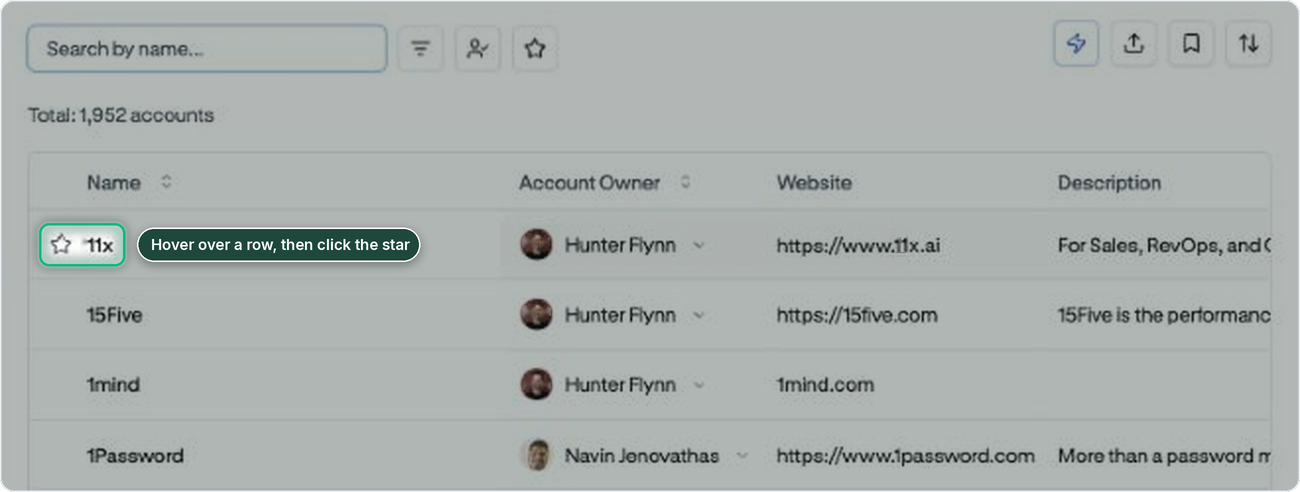
To unstar an account, click the yellow star again.
Where starred accounts show up
Home page
Your starred accounts appear in the Starred accounts card on your Home page, so you can jump straight to an account without opening the Accounts list. The card shows up to 6 starred accounts. If you have no starred accounts, the card does not show.
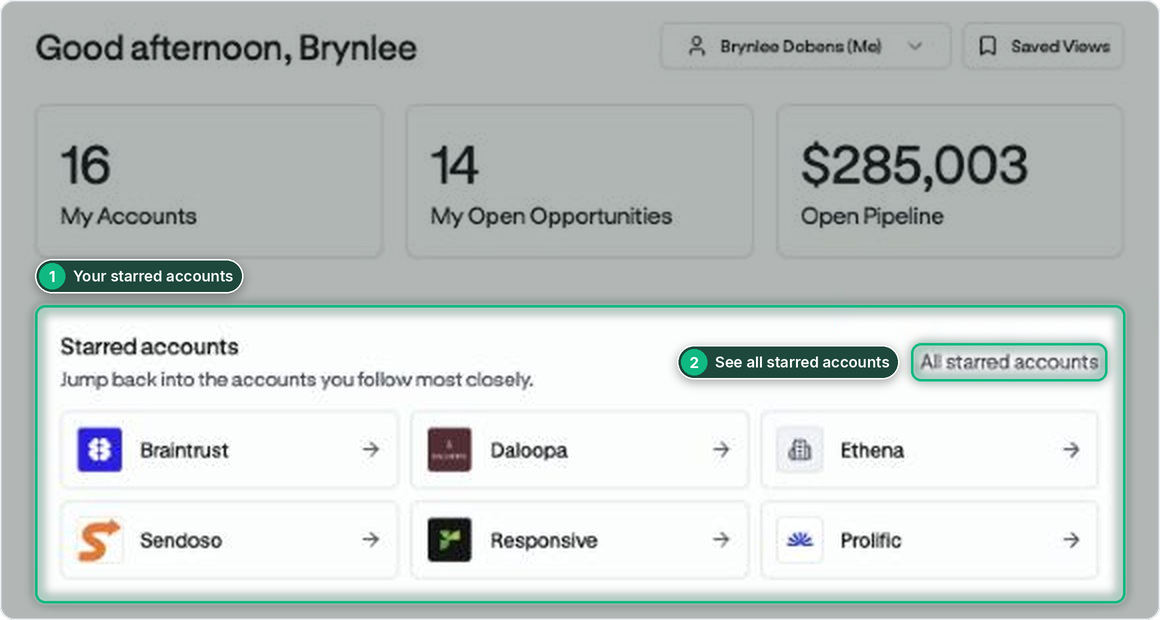
Accounts list
Starred accounts show a yellow star next to the account name. To see only your starred accounts, use the Starred filter.
View all your starred accounts
To see only your starred accounts, filter the Accounts list.
Go to the Accounts page.
Click the star icon in the toolbar, next to the search box.
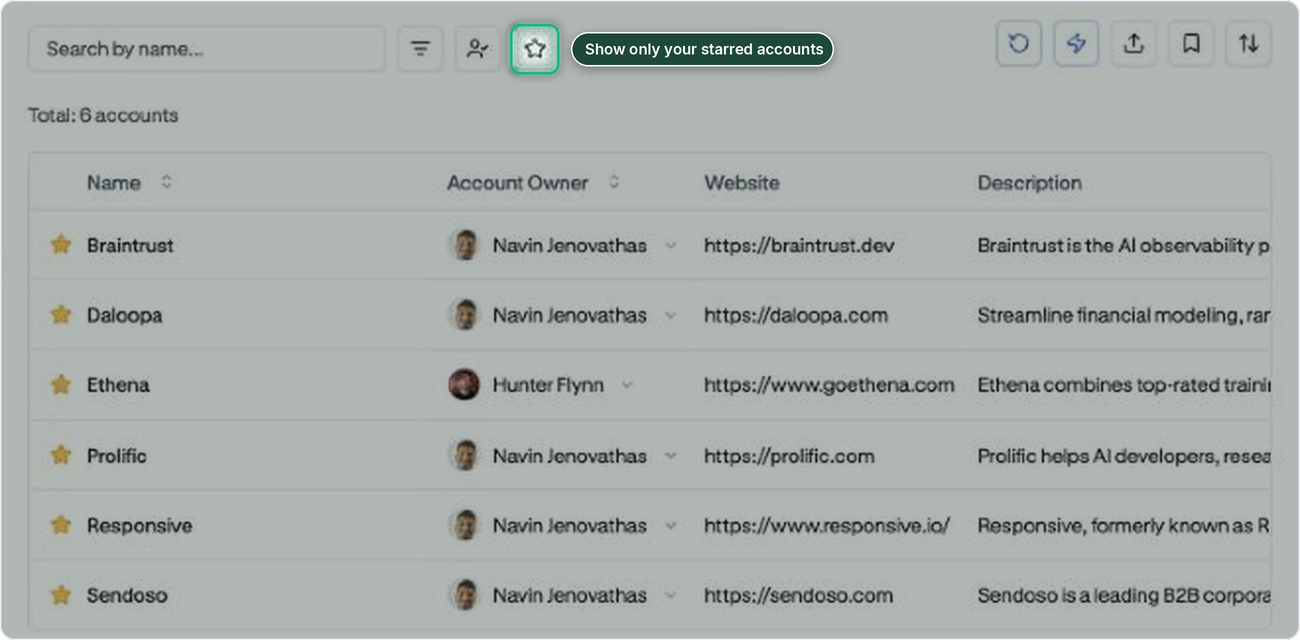
To go back to all accounts, click the star icon again.
Tip: You can also click All starred accounts in the Starred accounts card on your Home page. This opens the Accounts list with the Starred filter already on.
Need help?
If you don't see the option to star an account, or a starred account isn't showing up on your Home page or in the Starred filter, contact support@usecentralize.com for assistance.