Add Your Company Context for Call Prep and Email Drafts
Last updated: October 30, 2026
Give Centralize the background on your own company so its AI can explain where you fit for each account. Admins add a company description and supporting documents once, and Centralize uses them across call prep briefs, email drafts, and outreach requests for everyone on the team.
Contents
What company context does
Add your company description
Upload company documents
How reps' own settings interact with company context
Need help?
What company context does
Without company context, Centralize can tell your reps a lot about the prospect, but not much about why your product matters to them. Once you add it, Centralize uses it in:
Call prep: The Where We Fit section of the brief connects the account's needs to what your company offers.
Draft Email: Drafts can speak to how your company helps, not just what's happening on the account.
Request Outreach: Drafts written for a teammate to send use the same context.
Where We Fit appears on call prep you generate for a contact and on meeting briefs for accounts with a recent AI account summary. Some meeting briefs won't include it, and it's left out when Centralize doesn't find a clear fit.
Note: Only admins can edit company context. Reps don't need to do anything; it's applied to their call prep and email drafts automatically.
Add your company description
Your description may already be filled in. Centralize drafts one from your company website in the background, so new workspaces get one shortly after signup and existing workspaces have been filled in too. Review it and edit anything that's off.
Go to Settings → Workspace → Company.
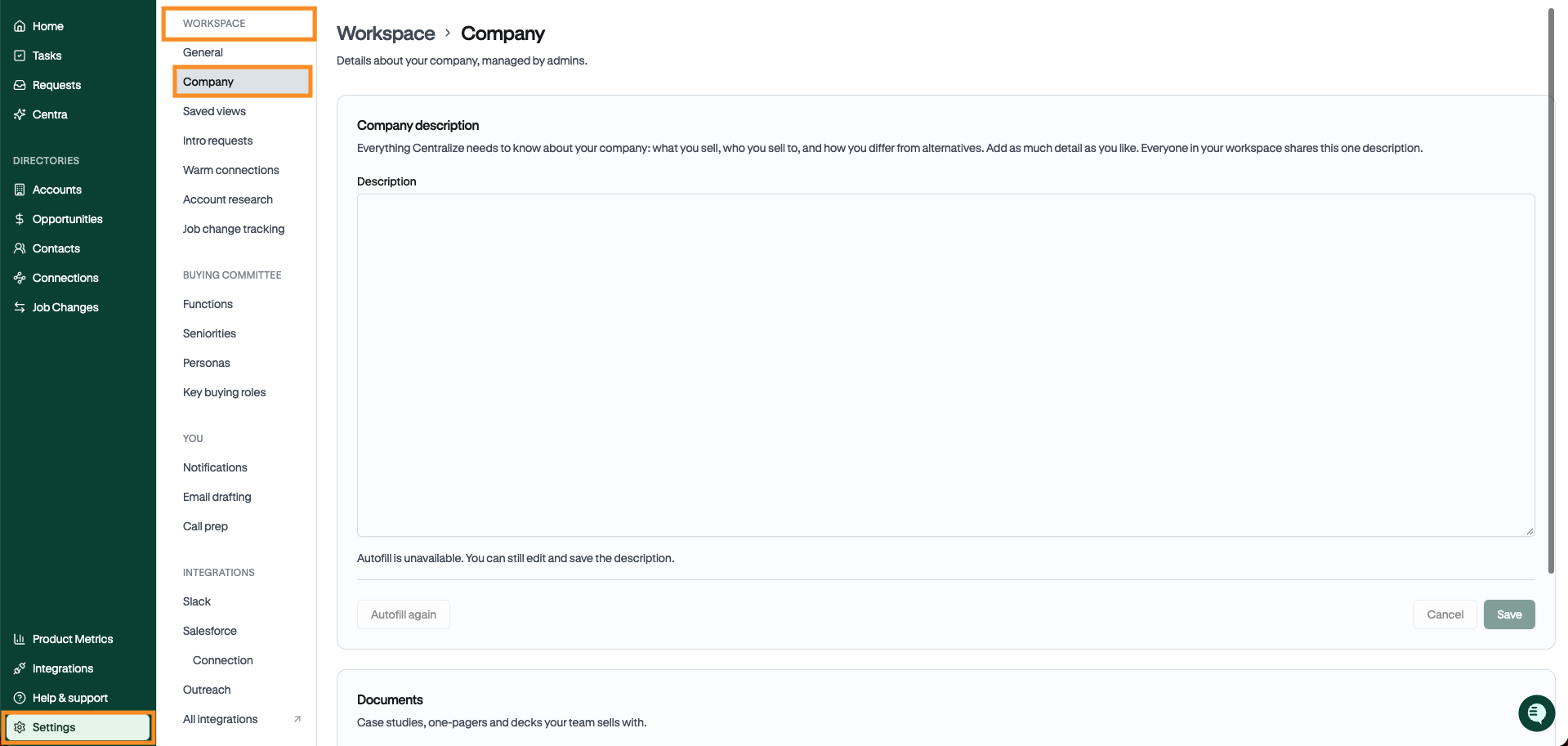
In the Description field, describe what your company does, who you sell to, and the problems you solve.
Click Save.
Tip: Focus on what a new rep would need: who your best customers are, the problems they bring you, and how you differ from alternatives.
Centralize won't overwrite a description you've edited. To replace it with a fresh draft from your website, click Autofill again. Centralize replaces the description with one generated from your company website and saves it, so copy anything you want to keep first.
Autofill uses the website of the company linked to your workspace. If the button is grayed out with "Autofill is unavailable," your workspace doesn't have a single linked company with a website. You can still write and save the description yourself, or contact support.
Upload company documents
Add case studies, one-pagers, decks, or positioning docs to give Centralize more to work with.
In the Documents section on the same page, drop your files in or click to choose them. Each file can be up to 25 MB, and you can upload up to 50 files per workspace.
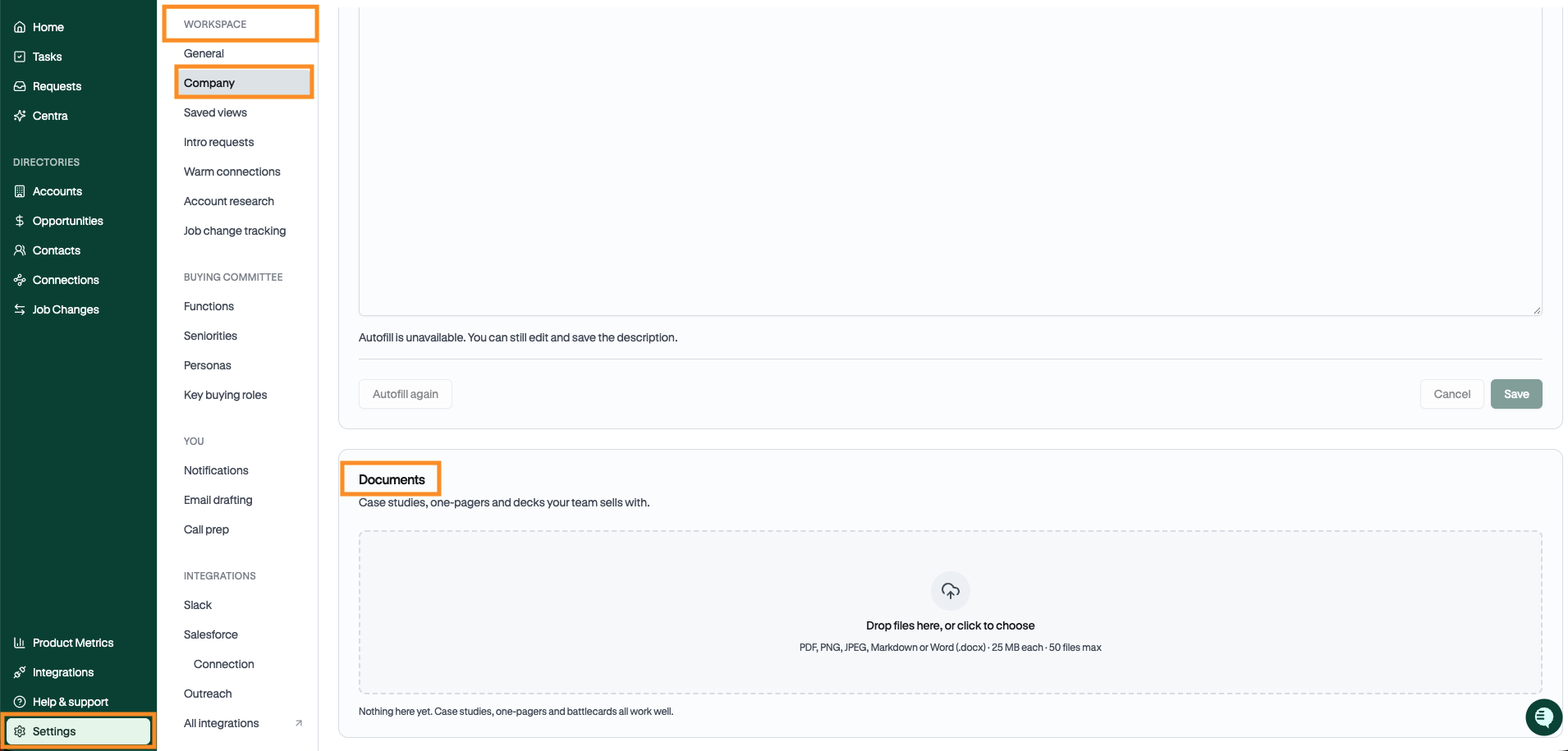
Each file shows whether Centralize was able to read it. If a file couldn't be read, click Retry, then refresh the page to see the updated status. Retry won't help with files that have no readable text, like scanned images, so upload a version with selectable text instead.
Supported file types are PDF, Word (.docx), Markdown (.md), PNG, and JPEG. For a Google Doc, download it as a Word file (File → Download → Microsoft Word) and upload that.
Centralize combines your description and documents into a single summary that it uses behind the scenes. When you add, change, or delete something, the summary updates automatically.
Note: Because Centralize summarizes your documents, very specific details like individual stats or customer quotes may not appear word for word in briefs or drafts. Put anything you always want reps to hear in the company description itself.
How reps' own settings interact with company context
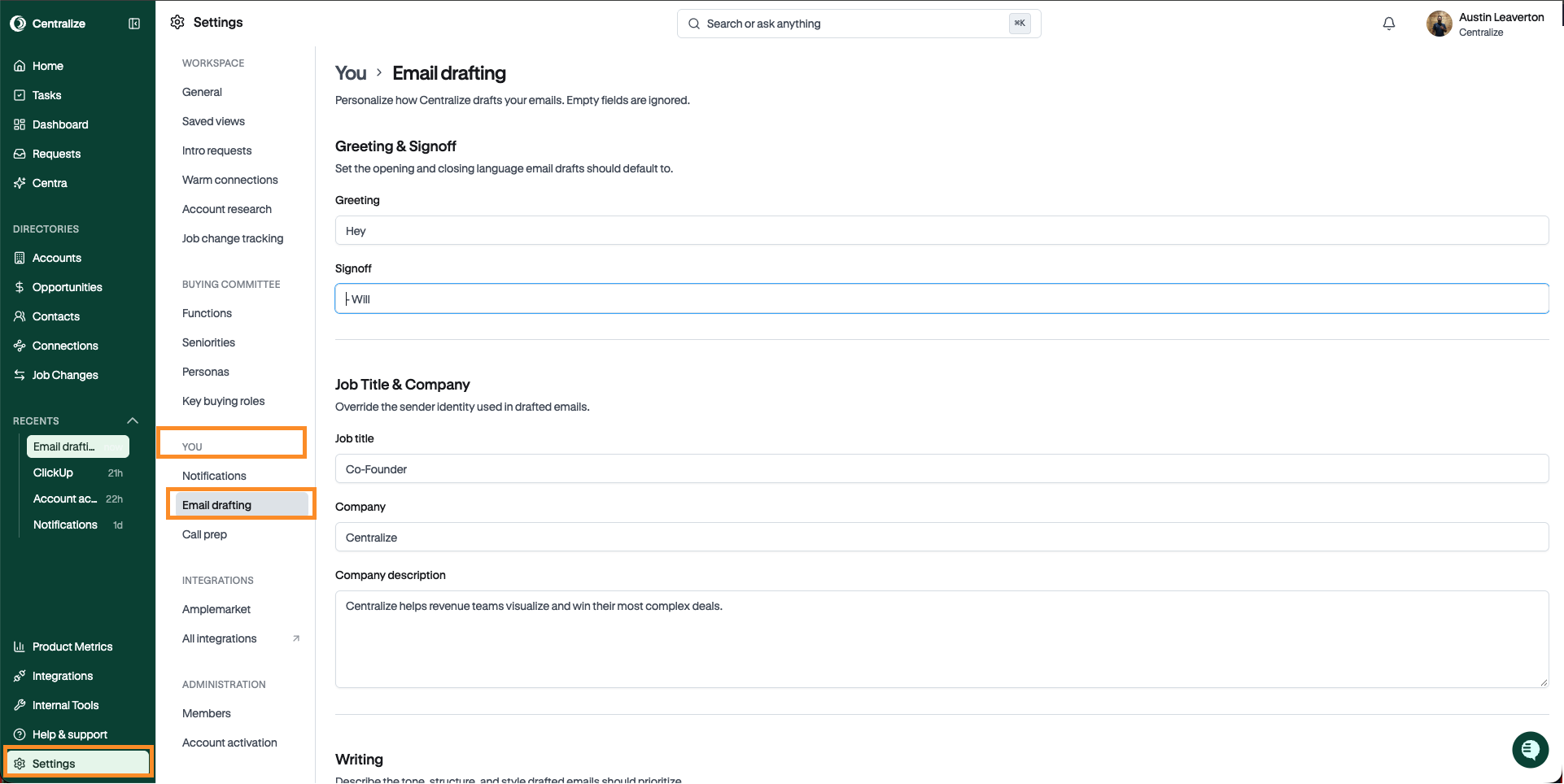
Reps can add their own company description in the Company description field under Settings → You → Email drafting. If a rep fills it in, Draft Email and Request Outreach use theirs instead of the company-wide one. Call prep always uses the company-wide description. To go back to the company-wide description for emails, the rep can clear the field.
Need help?
If you don't see the Company settings page, a file won't finish processing, or Where We Fit isn't showing up in your briefs, contact support@usecentralize.com for assistance.